<?xml version="1.0" encoding="utf-8"?><feed xmlns="http://www.w3.org/2005/Atom" ><generator uri="https://jekyllrb.com/" version="3.10.0">Jekyll</generator><link href="https://mathguimaraes.github.io/routine-meeting/feed.xml" rel="self" type="application/atom+xml" /><link href="https://mathguimaraes.github.io/routine-meeting/" rel="alternate" type="text/html" /><updated>2026-10-07T17:23:44+00:00</updated><id>https://mathguimaraes.github.io/routine-meeting/feed.xml</id><title type="html">Routine Meeting</title><subtitle>Engineering write-ups and release notes from building Routine Meeting, a local-first, automatic meeting recorder for macOS.</subtitle><author><name>Matheus Guimarães</name></author><entry><title type="html">1:1 meeting notes on Mac: record and transcribe privately (and how 6 options compare)</title><link href="https://mathguimaraes.github.io/routine-meeting/blog/one-on-one-meeting-notes-mac/" rel="alternate" type="text/html" title="1:1 meeting notes on Mac: record and transcribe privately (and how 6 options compare)" /><published>2026-10-07T00:00:00+00:00</published><updated>2026-10-07T00:00:00+00:00</updated><id>https://mathguimaraes.github.io/routine-meeting/blog/one-on-one-meeting-notes-mac</id><content type="html" xml:base="https://mathguimaraes.github.io/routine-meeting/blog/one-on-one-meeting-notes-mac/"><![CDATA[<p><strong>Short answer:</strong> two kinds of app are sold for 1:1s, and they solve different problems. <strong>Planning tools</strong> (Fellow, Lattice, 15Five, Windmill and similar) hold the shared agenda, goals and follow-ups. <strong>Recorders</strong> (Routine Meeting, Granola, MacWhisper, Biscotti) capture what was said and write the notes for you. If you manage people on a Mac and want the conversation itself written up without a bot in the call, use a recorder. If you want a shared agenda and review history with your team, use a planning tool. Many managers use both. Because a 1:1 often contains performance feedback, where the audio goes matters more than for most meetings.</p>

<p><em>Disclosure: I build Routine Meeting, one of the apps below. Facts about the other apps come from their own pricing and product pages and from Google search results, checked on 2026-10-07. If something has changed, tell me and I will fix it.</em></p>

<h2 id="two-jobs-two-kinds-of-app">Two jobs, two kinds of app</h2>

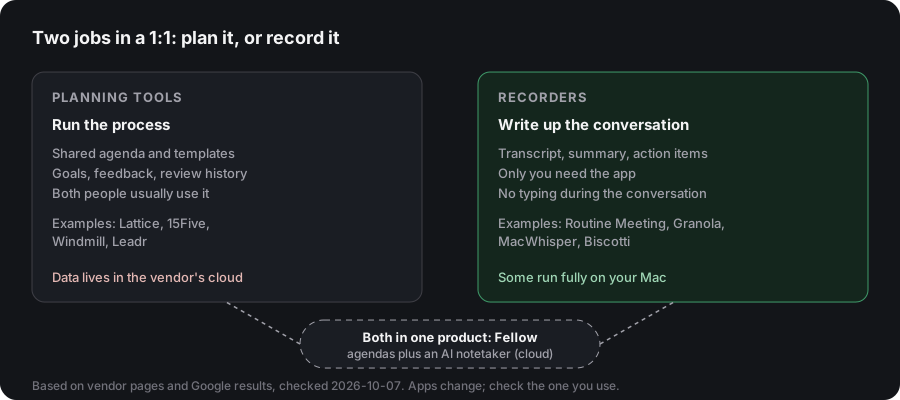
<p>When people search for “1:1 meeting notes app”, the results are mostly lists of <strong>planning</strong> software: shared agendas, templates, goals, review cycles. Those tools help you prepare and track. They usually do not listen to the conversation. A <strong>recorder</strong> does the opposite: it listens, transcribes and summarizes, and leaves planning to you.</p>

<table>
  <thead>
    <tr>
      <th> </th>
      <th>Planning tools</th>
      <th>Recorders</th>
    </tr>
  </thead>
  <tbody>
    <tr>
      <td>Examples</td>
      <td>Fellow, Lattice, 15Five, Windmill, Leadr</td>
      <td>Routine Meeting, Granola, MacWhisper, Biscotti</td>
    </tr>
    <tr>
      <td>Main job</td>
      <td>Shared agenda, goals, follow-ups, review history</td>
      <td>Transcript, summary, action items</td>
    </tr>
    <tr>
      <td>Needs the other person to use it</td>
      <td>Often yes (shared workspace)</td>
      <td>No</td>
    </tr>
    <tr>
      <td>Where your data lives</td>
      <td>Vendor cloud</td>
      <td>Depends: on your Mac, or vendor cloud</td>
    </tr>
    <tr>
      <td>Best when</td>
      <td>You run a team process</td>
      <td>You want notes without typing during the conversation</td>
    </tr>
  </tbody>
</table>

<figure class="post-figure">
  <img src="/routine-meeting/assets/blog/planner-vs-recorder.svg" alt="Two kinds of 1:1 apps: planning tools for agendas and goals, recorders for transcripts and summaries, with Fellow offering both" width="900" height="400" loading="lazy" style="width:100%;height:auto;display:block;border-radius:12px" />
  <figcaption>Planning tools run the process; recorders write up the conversation.</figcaption>
</figure>

<p>Some products straddle both. Fellow, for example, offers agendas and an AI notetaker, per its pricing page. If you need both in one product and accept a cloud service, look there first.</p>

<h2 id="what-to-ask-before-you-record-a-11">What to ask before you record a 1:1</h2>

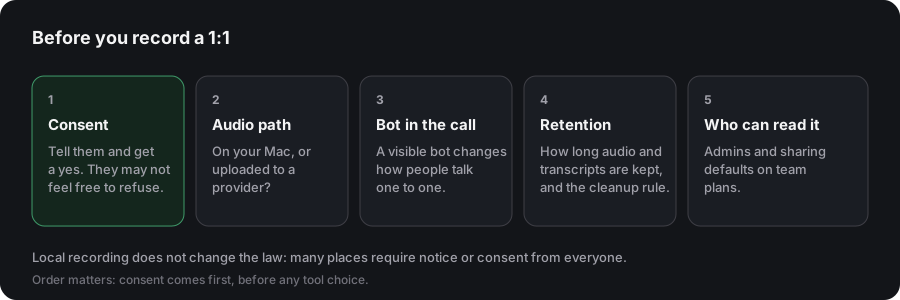
<p>A 1:1 is not a normal meeting. Check these first:</p>

<ol>
  <li><strong>Consent.</strong> Tell the other person and get a yes. Recording laws differ by place, and a direct report may not feel free to refuse. Many managers record only with an explicit invitation, and keep their own typed notes as the default.</li>
  <li><strong>Where the audio goes.</strong> Does speech recognition run on your Mac, or is audio uploaded? Performance feedback is exactly what you may not want on a vendor’s servers.</li>
  <li><strong>Whether a bot joins.</strong> A visible bot in a one-to-one conversation changes how people talk.</li>
  <li><strong>How long it keeps data.</strong> Old audio should not pile up. Look for automatic cleanup, and for a clear rule on what is kept.</li>
  <li><strong>Who can read it.</strong> On a team plan, notes may be visible to admins. Check the sharing defaults.</li>
</ol>

<figure class="post-figure">
  <img src="/routine-meeting/assets/blog/record-1on1-checklist.svg" alt="Five checks before recording a 1:1: consent, audio path, bot in the call, retention and who can read it" width="900" height="300" loading="lazy" style="width:100%;height:auto;display:block;border-radius:12px" />
  <figcaption>Consent comes first, before any tool choice.</figcaption>
</figure>

<h2 id="the-options-step-by-step">The options, step by step</h2>

<h3 id="routine-meeting-free">Routine Meeting (free)</h3>

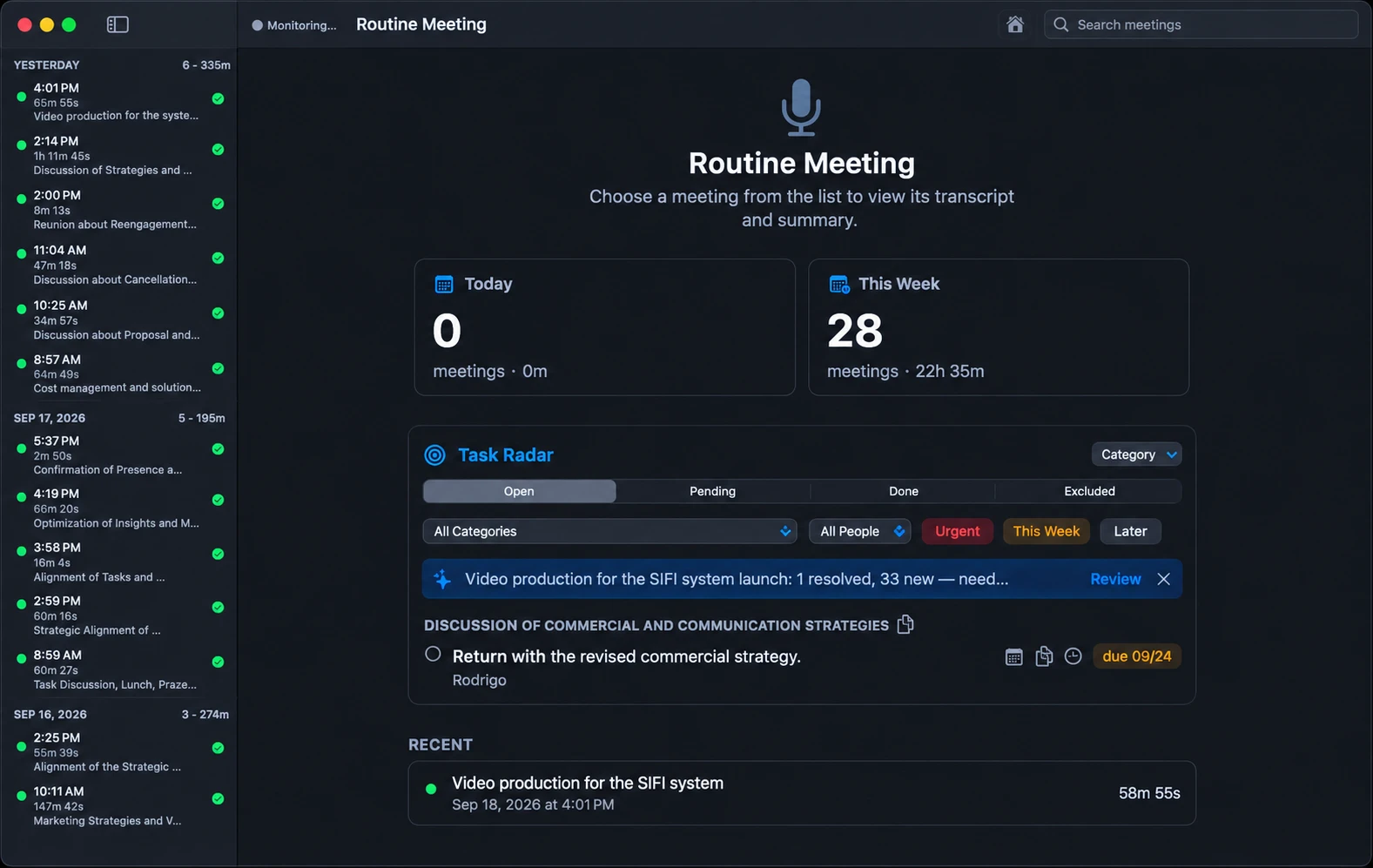
<p>A menu-bar app that starts by itself when it hears the pattern of a real call: your microphone active plus audio coming from another app. It does not care which app makes the sound, so a Zoom 1:1, a Slack huddle, a FaceTime call or a phone call relayed to your Mac are all captured with no per-app setup.</p>

<ul>
  <li><strong>Capture:</strong> microphone plus system audio. Audio only, no video. macOS shows its purple recording indicator.</li>
  <li><strong>Transcription:</strong> on your Mac, with WhisperKit. Your side and the other side are transcribed separately and labeled “What you said” and “What others said”. In a two-person 1:1 that is effectively one name per person.</li>
  <li><strong>Summaries:</strong> optional. A local model with no key and no network call, or your own Gemini key (only the transcript text is sent, never the audio).</li>
  <li><strong>Insights:</strong> an optional pass that first works out what kind of meeting it was (a 1:1, a standup, a client call and so on) and then comments only on what matters for that kind. If the meeting was low stakes, it says there is nothing notable instead of inventing coaching.</li>
  <li><strong>Storage:</strong> on your Mac. Audio is deleted after a number of days you choose, but only once a transcript exists. Transcripts and summaries stay.</li>
  <li><strong>Account and price:</strong> none, and free.</li>
  <li><strong>Requirements:</strong> Apple Silicon, macOS 13 or later.</li>
</ul>

<figure class="post-figure">
  <img src="/routine-meeting/screenshots/app-main.webp" alt="Routine Meeting main window: meeting list, weekly stats and the Task Radar" width="1577" height="997" loading="lazy" style="width:100%;height:auto;display:block;border-radius:12px" />
  <figcaption>Routine Meeting's main window on a Mac.</figcaption>
</figure>

<p>Limits: closed source, no shared agenda or goal tracking, no team sharing, no integrations, no SOC 2 report. Speaker labels are you versus everyone else, so it will not name three people in a group meeting.</p>

<h3 id="granola">Granola</h3>

<p>A well-known bot-free notepad: you type a few lines during the meeting and it merges them with the transcript. Per its pricing page (checked 2026-10-07): a free Basic plan with a 30-day meeting history, Business at $14 per user per month, and Enterprise at $35. It runs on desktop and mobile. Its security page says it does not store meeting audio, uses third-party transcription and AI providers, and keeps notes on its US-hosted cloud, so audio does leave your Mac.</p>

<h3 id="fellow">Fellow</h3>

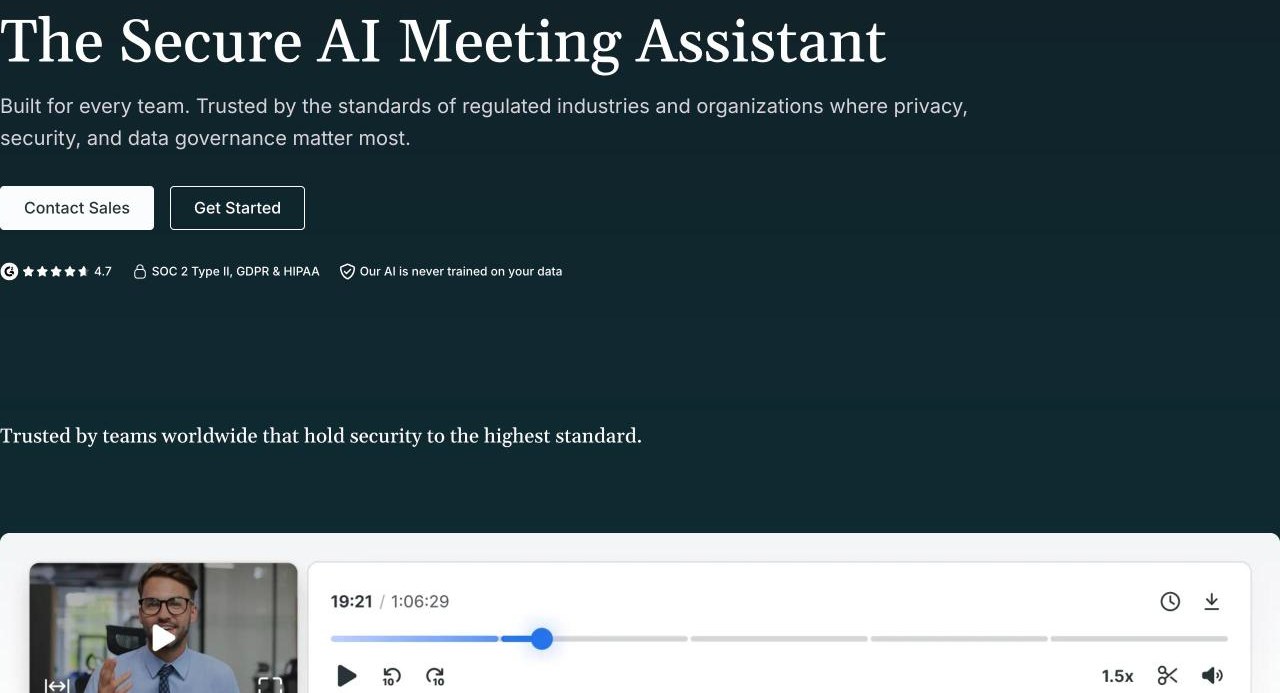
<p>A meeting platform built around shared agendas, with an AI notetaker. Per its pricing page (checked 2026-10-07): a free plan with 5 lifetime AI notes and recordings per user, Team at $7 per user per month billed annually, Business at $15, Enterprise at $25. Data is hosted on AWS. A good fit if the whole team will adopt it, and a heavier choice if you only want private notes for yourself.</p>

<figure class="post-figure">
  <img src="/routine-meeting/assets/blog/competitors/fellow-website-2026-10-07.jpg" alt="Detail of Fellow's website, showing its AI meeting assistant headline and a recording player" width="1280" height="693" loading="lazy" style="width:100%;height:auto;display:block;border-radius:12px" />
  <figcaption>Screenshot of Fellow's website, 2026-10-07. Image property of Fellow, shown for comparison.</figcaption>
</figure>

<h3 id="macwhisper-pro-64-eur-one-time">MacWhisper (Pro: 64 EUR, one time)</h3>

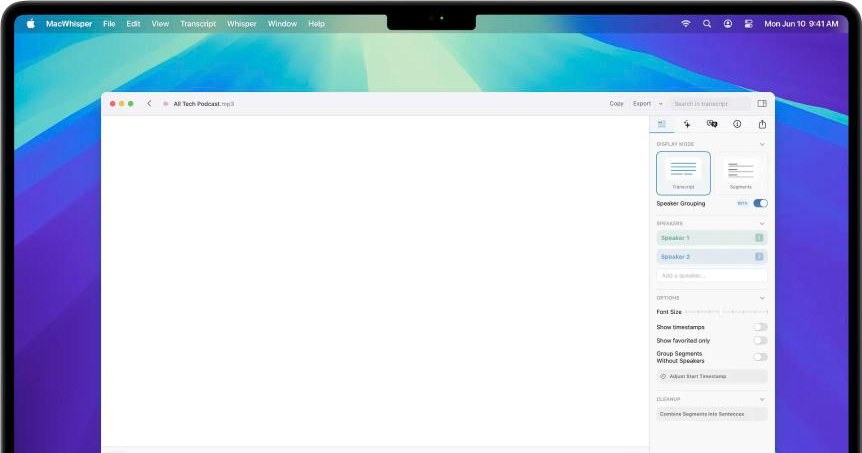
<p>A mature transcriber that also records meetings on-device with automatic start detection. Its docs describe meeting recording as a beta and say all participants are grouped as one speaker for now, which makes a 1:1 transcript harder to read. Better if you also transcribe lots of files.</p>

<figure class="post-figure">
  <img src="/routine-meeting/assets/blog/competitors/macwhisper-website-2026-10-07.jpg" alt="Detail of MacWhisper's website, showing its transcript window with a speaker panel" width="862" height="453" loading="lazy" style="width:100%;height:auto;display:block;border-radius:12px" />
  <figcaption>Screenshot of MacWhisper's website, 2026-10-07. Image property of its owner, shown for comparison.</figcaption>
</figure>

<h3 id="biscotti-free-source-available">Biscotti (free, source-available)</h3>

<p>A fully local pipeline: transcription, per-person speaker separation and a local Gemma model for summaries. It needs macOS 15 or later and recommends 16 GB of RAM.</p>

<h3 id="apple-notes-with-a-paper-notebook-free">Apple Notes with a paper notebook (free)</h3>

<p>The honest baseline. In Reddit threads on “what tools do you use for 1:1s”, many managers say they use a OneNote file per person or a paper notebook, and that listening matters more than capturing every word. Apple Notes can also record audio and transcribe it, per Apple Support. If you only hold a few 1:1s a week, this may be enough.</p>

<h2 id="side-by-side">Side by side</h2>

<table>
  <thead>
    <tr>
      <th> </th>
      <th>Routine Meeting</th>
      <th>Granola</th>
      <th>Fellow</th>
      <th>MacWhisper</th>
      <th>Biscotti</th>
    </tr>
  </thead>
  <tbody>
    <tr>
      <td>Kind</td>
      <td>Recorder</td>
      <td>Recorder</td>
      <td>Planner plus notetaker</td>
      <td>Recorder / file transcriber</td>
      <td>Recorder</td>
    </tr>
    <tr>
      <td>Bot in the call</td>
      <td>No</td>
      <td>No</td>
      <td>Not checked</td>
      <td>No</td>
      <td>No</td>
    </tr>
    <tr>
      <td>Speech recognition</td>
      <td>On your Mac</td>
      <td>Third-party providers</td>
      <td>Cloud</td>
      <td>On your Mac</td>
      <td>On your Mac</td>
    </tr>
    <tr>
      <td>Summary</td>
      <td>Local model or your Gemini key</td>
      <td>Cloud</td>
      <td>Cloud</td>
      <td>Your keys or local</td>
      <td>Local (Gemma)</td>
    </tr>
    <tr>
      <td>Speaker labels</td>
      <td>You vs others</td>
      <td>Not checked</td>
      <td>Not checked</td>
      <td>One speaker (beta docs)</td>
      <td>Per person</td>
    </tr>
    <tr>
      <td>Shared agenda</td>
      <td>No</td>
      <td>No</td>
      <td>Yes</td>
      <td>No</td>
      <td>No</td>
    </tr>
    <tr>
      <td>Price</td>
      <td>Free</td>
      <td>Free (30-day history); $14</td>
      <td>Free (5 lifetime); from $7</td>
      <td>Free tier; Pro 64 EUR once</td>
      <td>Free</td>
    </tr>
    <tr>
      <td>Account</td>
      <td>None</td>
      <td>Yes</td>
      <td>Yes</td>
      <td>None</td>
      <td>None</td>
    </tr>
  </tbody>
</table>

<p>“Not checked” means I did not verify it and will not guess.</p>

<h2 id="which-one-should-you-pick">Which one should you pick?</h2>

<ul>
  <li><strong>You are a manager, you want 1:1 notes kept private on your Mac, and nobody else needs access:</strong> a local recorder. Routine Meeting if you want it to start with every call in any app, Biscotti if you want per-person labels and a fully local summary and have a recent Mac.</li>
  <li><strong>You want a shared agenda, goals and review history across the team:</strong> Fellow or another planning tool, accepting cloud storage.</li>
  <li><strong>You want a polished notepad and are fine with cloud processing:</strong> Granola.</li>
  <li><strong>You also transcribe many recordings and dictate:</strong> MacWhisper.</li>
  <li><strong>You hold few 1:1s and care most about presence:</strong> Apple Notes and a notebook.</li>
</ul>

<h2 id="how-to-record-a-11-on-a-mac-routine-meeting">How to record a 1:1 on a Mac (Routine Meeting)</h2>

<ol>
  <li><strong>Install and grant permissions.</strong> Microphone, then Screen and System Audio Recording. The second name sounds scary, but only audio is captured.</li>
  <li><strong>Pick your summary mode.</strong> Choose the on-device model if the conversation is sensitive, or add a Gemini key for better summaries on routine ones.</li>
  <li><strong>Ask first.</strong> Tell the other person you will record and why, and say they can say no.</li>
  <li><strong>Join the call.</strong> Recording starts after a short delay and stops when the call ends.</li>
  <li><strong>Read the summary and action items.</strong> Edit before you share anything, and send commitments to the other person yourself.</li>
  <li><strong>Let old audio clear.</strong> Set the retention days so recordings do not pile up. Transcripts remain.</li>
</ol>

<h2 id="faq">FAQ</h2>

<p><strong>Can I record a 1:1 on a Mac without a bot?</strong> Yes. Apps that record your microphone and your Mac’s system audio do not join the call.</p>

<p><strong>Is it legal to record a 1:1 with a direct report?</strong> It depends on where you both are. Many places require notice or consent from everyone. Ask first, and follow your company’s policy.</p>

<p><strong>Will it work for in-person 1:1s?</strong> Routine Meeting is built around calls, using the pattern of microphone plus system audio. For in-room conversations, a file-based transcriber such as MacWhisper is a better fit.</p>

<p><strong>Do I need an internet connection?</strong> Not for recording or transcription. A local summary model also works offline once its files are downloaded. A Gemini summary needs a connection.</p>

<p><strong>Will it label who said what?</strong> In a two-person call it labels you and the other person separately. It does not name each person in a larger meeting.</p>

<h2 id="sources-checked-2026-10-07">Sources (checked 2026-10-07)</h2>

<ul>
  <li>Fellow: fellow.ai/pricing</li>
  <li>Granola: granola.ai/pricing and granola.ai/security</li>
  <li>MacWhisper: macwhisper.com and docs.macwhisper.com</li>
  <li>Biscotti: github.com/scosman/Biscotti</li>
  <li>Planning tools mentioned (Lattice, 15Five, Windmill, Leadr): names as listed in Google results for 1:1 meeting software, 2026-10-07</li>
  <li>Reddit r/managers, “What tools do you use to conduct one-on-one meetings?”</li>
</ul>]]></content><author><name>Matheus Guimarães</name></author><category term="blog" /><summary type="html"><![CDATA[Planning tools like Fellow and Lattice run your 1:1s; recorders like Routine Meeting write them up. How they differ, what each costs, and how to record a 1:1 on a Mac without a bot and without sending audio away.]]></summary></entry><entry><title type="html">Local and offline AI meeting notes on a Mac: how to run it with no cloud (and 5 apps compared)</title><link href="https://mathguimaraes.github.io/routine-meeting/blog/local-ai-meeting-notes-mac/" rel="alternate" type="text/html" title="Local and offline AI meeting notes on a Mac: how to run it with no cloud (and 5 apps compared)" /><published>2026-10-06T00:00:00+00:00</published><updated>2026-10-06T00:00:00+00:00</updated><id>https://mathguimaraes.github.io/routine-meeting/blog/local-ai-meeting-notes-mac</id><content type="html" xml:base="https://mathguimaraes.github.io/routine-meeting/blog/local-ai-meeting-notes-mac/"><![CDATA[<p><strong>Short answer:</strong> you can record a meeting, transcribe it and write the summary entirely on a Mac, with Wi-Fi off. You need two local parts: a speech model that turns audio into text (Whisper-family models run well on Apple Silicon) and a small language model that turns the text into notes. The first run needs internet once, to download the models. After that, nothing has to leave the machine. Summaries from a small local model are weaker than a big cloud model, and that trade-off is the real decision.</p>

<p><em>Disclosure: I build Routine Meeting, one of the apps below. Facts about the other apps come from their own sites and docs, checked on 2026-10-06.</em></p>

<h2 id="what-runs-where">What runs where</h2>

<p>A “local” meeting notes setup has three stages. Each can be local or cloud:</p>

<table>
  <thead>
    <tr>
      <th>Stage</th>
      <th>Local version</th>
      <th>Cloud version</th>
    </tr>
  </thead>
  <tbody>
    <tr>
      <td>Speech to text</td>
      <td>Whisper-family model on the Mac’s Neural Engine or GPU</td>
      <td>Upload audio to a transcription API</td>
    </tr>
    <tr>
      <td>Notes and summary</td>
      <td>Small on-device language model</td>
      <td>Send the transcript text to a hosted model</td>
    </tr>
    <tr>
      <td>Storage</td>
      <td>Files on your disk</td>
      <td>Vendor servers</td>
    </tr>
  </tbody>
</table>

<p>“Offline” is the stricter claim: all three stages work with no network at all. Most apps that say “local” mean the first stage only. Always check the second.</p>

<h2 id="hardware-what-you-need">Hardware: what you need</h2>

<ul>
  <li><strong>Apple Silicon</strong> (M1 or later). Every on-device app below targets it, and so does Whisper acceleration.</li>
  <li><strong>RAM matters for summaries, not for transcription.</strong> A local summary model takes a few gigabytes while it runs. On an 8 GB Mac, run only one model at a time; on 16 GB or more you have room to spare.</li>
  <li><strong>Disk:</strong> models are downloaded once. Recordings can be large, so pick an app with automatic cleanup.</li>
</ul>

<h2 id="the-five-apps-step-by-step">The five apps, step by step</h2>

<h3 id="routine-meeting-free">Routine Meeting (free)</h3>

<p>Routine Meeting starts by itself when it hears the pattern of a real call, so you press nothing. It records your microphone and the system audio, then transcribes with WhisperKit on the Neural Engine, in two passes: your side and the other side, labeled separately. For summaries you choose a local model through MLX (Qwen2.5-3B, Llama-3.2-3B or Gemma-3-4B) or, optionally, your own Gemini key. The local path needs no key and makes no network call. Only one local model loads at a time, so an 8 GB Mac does not run out of memory.</p>

<p>Limits: closed source, speaker labels are you versus everyone else (not one name per person), no integrations, and local summaries are weaker than Gemini’s.</p>

<h3 id="biscotti-free-source-available">Biscotti (free, source-available)</h3>

<p>Biscotti runs the whole pipeline locally: Whisper V3 Turbo, Pyannote for separating speakers, and a Gemma model for summaries, action items and titles. It records your mic and system audio with no bot. It needs macOS 15 or later and Apple Silicon, and recommends 16 GB of RAM. The license is PolyForm Perimeter, so the source is available but not open source in the usual sense.</p>

<h3 id="macparakeet-free-gpl-30">MacParakeet (free, GPL-3.0)</h3>

<p>Open source, no account. Speech recognition runs on your Mac and the recorder separates you from everyone else. It writes audio to disk every second, so a crash does not lose the meeting. Summaries use the provider you configure (OpenAI, Anthropic, Ollama, LM Studio or OpenRouter), so they are local only if you choose Ollama or LM Studio. It needs macOS 14.2 or later and Apple Silicon.</p>

<h3 id="meetily-free-community-edition-mit">Meetily (free community edition, MIT)</h3>

<p>Open source and cross-platform (macOS, Windows, Linux). It transcribes with Whisper or Parakeet models and summarizes with Ollama locally, or a cloud provider if you prefer. Per its README, speaker identification is not in the free edition. Setup is more hands-on than a menu-bar app.</p>

<h3 id="resonant">Resonant</h3>

<p>Resonant’s site says its neural speech recognition runs on Apple Silicon and works in airplane mode and secure environments, on macOS 14 or later. Its page does not say whether summaries run locally, and I could not confirm price or speaker labels from the page I read, so I do not compare those.</p>

<h3 id="quill-a-note-on-a-different-approach">Quill (a note on a different approach)</h3>

<p>Quill says audio is recorded and stored on your device and is not processed outside your computer, with no bot. It also offers calendar briefs, automations to tools like Slack and Notion, and a paid tier. I could not confirm from its page whether the summary step runs locally, so check that before relying on it for offline use.</p>

<h2 id="side-by-side">Side by side</h2>

<table>
  <thead>
    <tr>
      <th> </th>
      <th>Routine Meeting</th>
      <th>Biscotti</th>
      <th>MacParakeet</th>
      <th>Meetily</th>
      <th>Resonant</th>
    </tr>
  </thead>
  <tbody>
    <tr>
      <td>Speech to text</td>
      <td>Local (WhisperKit)</td>
      <td>Local (Whisper V3 Turbo)</td>
      <td>Local</td>
      <td>Local (Whisper / Parakeet)</td>
      <td>Local, per its site</td>
    </tr>
    <tr>
      <td>Summary</td>
      <td>Local MLX model, or Gemini key</td>
      <td>Local (Gemma)</td>
      <td>Your provider; local with Ollama / LM Studio</td>
      <td>Ollama or cloud</td>
      <td>Not stated</td>
    </tr>
    <tr>
      <td>Works with Wi-Fi off</td>
      <td>Yes, after models are downloaded</td>
      <td>Yes, per its local claim</td>
      <td>Yes if you use a local provider</td>
      <td>Yes with Ollama</td>
      <td>Yes, per its site</td>
    </tr>
    <tr>
      <td>Speaker labels</td>
      <td>You vs others</td>
      <td>Per person</td>
      <td>You vs others</td>
      <td>Pro only</td>
      <td>Not stated</td>
    </tr>
    <tr>
      <td>Price</td>
      <td>Free</td>
      <td>Free</td>
      <td>Free</td>
      <td>Free; Pro paid</td>
      <td>Not stated</td>
    </tr>
    <tr>
      <td>Source</td>
      <td>Closed</td>
      <td>Source-available</td>
      <td>GPL-3.0</td>
      <td>MIT</td>
      <td>Not stated</td>
    </tr>
    <tr>
      <td>Requirements</td>
      <td>Apple Silicon</td>
      <td>macOS 15+, 16 GB advised</td>
      <td>macOS 14.2+</td>
      <td>macOS, Windows, Linux</td>
      <td>macOS 14+, Apple Silicon</td>
    </tr>
  </tbody>
</table>

<h2 id="setup-step-by-step-routine-meeting">Setup, step by step (Routine Meeting)</h2>

<ol>
  <li>Install the app and open the setup guide. It explains each permission before it asks.</li>
  <li>Allow Microphone, then Screen and System Audio Recording. The second name sounds scary, but only audio is captured, never video or screen content. macOS will show its purple recording indicator while recording.</li>
  <li>Leave Launch at Login on, so it is running after a restart.</li>
  <li>At the last step, skip the Gemini key and choose the on-device model.</li>
  <li>Let the first model download finish while you are online. This is the only step that needs internet.</li>
  <li>Join a call. Detection starts recording after a short delay, and stops when the call ends.</li>
</ol>

<h2 id="the-offline-test-do-this-with-any-app">The offline test (do this with any app)</h2>

<p>Do not trust the label. Test it:</p>

<ol>
  <li>With internet on, install the app, complete setup and let every model download.</li>
  <li>Turn Wi-Fi off, or enable Airplane Mode. Confirm the menu bar shows no connection.</li>
  <li>Record a short call or play a recorded conversation through the speakers while talking.</li>
  <li>Check that recording starts, the transcript appears, and the summary appears.</li>
  <li>If any step fails or hangs, that step needs the network.</li>
</ol>

<p>What always needs internet: downloading models, app updates, and any cloud summary you turn on. What should not: recording, transcription and a local summary.</p>

<h2 id="local-summaries-versus-gemini-the-trade-off">Local summaries versus Gemini: the trade-off</h2>

<p>A small on-device model is private and works anywhere, but it is less reliable on long meetings, many speakers and subtle action items. A large cloud model writes better notes, at the cost of sending the transcript text (never the audio) to a provider. A reasonable middle path: use the local model for sensitive meetings and a cloud key for routine ones, and switch per need.</p>

<h2 id="faq">FAQ</h2>

<p><strong>Can a Mac do meeting transcription offline?</strong> Yes, with a local speech model. The models must be downloaded first.</p>

<p><strong>Do I need an internet connection for summaries?</strong> Not with a local model. Cloud summaries need one.</p>

<p><strong>Is local transcription accurate?</strong> Whisper-family models are strong on clear speech. Accuracy drops with overlapping talk, noise and accents, and a larger model is slower.</p>

<p><strong>Will it work on an 8 GB Mac?</strong> Transcription usually does. Run one summary model at a time and close other heavy apps.</p>

<p><strong>Does local mean no consent needed?</strong> No. Recording laws still apply. Tell participants before recording.</p>

<h2 id="sources-checked-2026-10-06">Sources (checked 2026-10-06)</h2>

<ul>
  <li>Biscotti: github.com/scosman/Biscotti</li>
  <li>MacParakeet: macparakeet.com/meetings</li>
  <li>Meetily: github.com/Zackriya-Solutions/meetily</li>
  <li>Resonant: onresonant.com/resources</li>
  <li>Quill: quillmeetings.com</li>
</ul>]]></content><author><name>Matheus Guimarães</name></author><category term="blog" /><summary type="html"><![CDATA[What actually runs on your Mac for meeting transcription and summaries, what still needs internet once, and how to test it in airplane mode. Compared with dated sources.]]></summary></entry><entry><title type="html">Otter alternative for Mac: local, no account, no minute caps (and how Otter’s Mac app really works)</title><link href="https://mathguimaraes.github.io/routine-meeting/blog/otter-alternative-mac/" rel="alternate" type="text/html" title="Otter alternative for Mac: local, no account, no minute caps (and how Otter’s Mac app really works)" /><published>2026-10-06T00:00:00+00:00</published><updated>2026-10-07T00:00:00+00:00</updated><id>https://mathguimaraes.github.io/routine-meeting/blog/otter-alternative-mac</id><content type="html" xml:base="https://mathguimaraes.github.io/routine-meeting/blog/otter-alternative-mac/"><![CDATA[<p><strong>Short answer:</strong> Otter is a strong choice for teams that want shared notes, integrations and a compliance report. If you are one person on a Mac who wants meeting transcription that stays on your machine, with no account and no minute cap, a local app is the better fit. Routine Meeting, MacWhisper, Biscotti, MacParakeet and echo99 all record and transcribe on the Mac. The common claim that “Otter makes a bot join your call” is out of date: Otter has had a bot-free desktop app for Mac since late 2025. The differences that remain are where audio is processed and stored, whether you need an account, and what you pay. If your main problem is Otter’s free-plan limits or its price, the cost table below compares a year of each option, including one free cloud tool.</p>

<p><em>Disclosure: I build Routine Meeting, one of the options below. Facts about Otter and the other apps come from their own websites and help pages, checked on 2026-10-06 (the cost table and the added options on 2026-10-07). Otter’s Mac product page sits behind a sign-in wall, so for the Mac app I used its help center, its desktop pages and its launch post.</em></p>

<h2 id="how-otter-works-on-a-mac-today">How Otter works on a Mac today</h2>

<p>Otter offers two ways to capture a meeting, and many comparison pages only mention the first:</p>

<ol>
  <li><strong>The bot.</strong> Otter’s notetaker joins your Zoom, Teams or Google Meet call as a participant.</li>
  <li><strong>The desktop app.</strong> Announced on October 7, 2025 for Mac and Windows. Per Otter’s help article, it records audio without a bot joining. It needs macOS 12.3 or later, plus two permissions: Microphone, and Screen and Audio Recording. It can detect meetings on Zoom, Teams, Google Meet and Slack huddles, or you press Record yourself, and it also covers in-person conversations. If it hears no conversation for 10 minutes it stops recording after 15 seconds unless you tell it to continue.</li>
</ol>

<p>Otter’s pages do not say which plans include the desktop app, so confirm that on your own account. If your reason for looking at alternatives is “I don’t want a bot in my meetings”, Otter’s own desktop app already addresses that.</p>

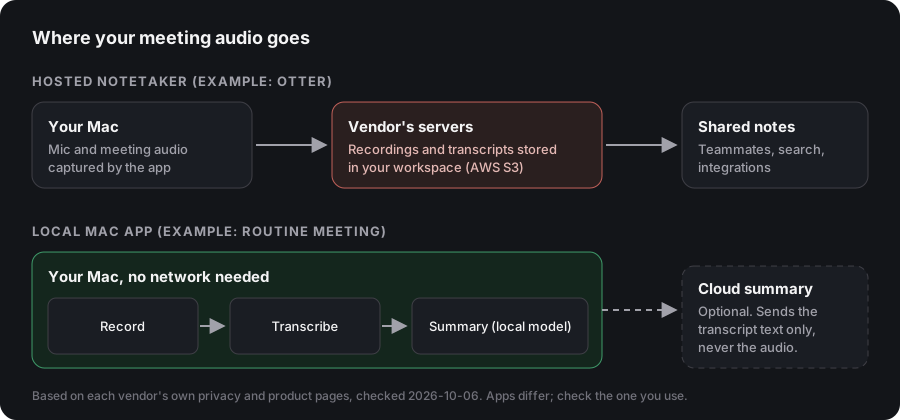
<h2 id="where-otters-data-goes">Where Otter’s data goes</h2>

<p>Otter states these facts on its privacy and security page:</p>

<ul>
  <li>Data is stored in AWS S3 with AES-256 encryption.</li>
  <li>It is SOC 2 Type 2 audited and states GDPR, CCPA and HIPAA compliance.</li>
  <li>It de-identifies user data before using it to train its own models. It says no customer data is used to train its AI service providers’ models.</li>
  <li>Deleted conversations stay in the trash for 30 days.</li>
</ul>

<p>In the Otter pages I read, there is no mention of on-device transcription. Its model is hosted: your recordings and transcripts live in your Otter workspace. For many teams that is a feature, because notes are shared and searchable. For someone who wants the audio to stay on their laptop, it is the deciding difference.</p>

<figure class="post-figure">
  <img src="/routine-meeting/assets/blog/where-your-audio-goes.svg" alt="Diagram comparing a hosted notetaker, where recordings and transcripts are stored on the vendor's servers, with a local Mac app that records, transcribes and summarizes on the Mac and only sends transcript text out if a cloud summary is turned on" width="900" height="420" loading="lazy" style="width:100%;height:auto;display:block;border-radius:12px" />
  <figcaption>Where audio goes in a hosted notetaker versus a local Mac app. Diagram by Routine Meeting, based on each vendor's own pages.</figcaption>
</figure>

<h2 id="what-otter-costs-and-where-the-limits-are">What Otter costs, and where the limits are</h2>

<p>From Otter’s pricing page, checked 2026-10-06:</p>

<table>
  <thead>
    <tr>
      <th>Plan</th>
      <th>Price (per user)</th>
      <th>Monthly minutes</th>
      <th>Max per conversation</th>
    </tr>
  </thead>
  <tbody>
    <tr>
      <td>Basic (free)</td>
      <td>0</td>
      <td>300</td>
      <td>30 minutes; 3 lifetime file imports</td>
    </tr>
    <tr>
      <td>Pro</td>
      <td>$16.99 monthly, or $8.33 per month billed annually</td>
      <td>1,200</td>
      <td>90 minutes; 10 imports per month</td>
    </tr>
    <tr>
      <td>Business</td>
      <td>$30 monthly, or $19.99 per month billed annually</td>
      <td>Unlimited meetings</td>
      <td>4 hours</td>
    </tr>
    <tr>
      <td>Enterprise</td>
      <td>Custom</td>
      <td>Custom</td>
      <td>Custom (adds SSO, SCIM; HIPAA as an add-on)</td>
    </tr>
  </tbody>
</table>

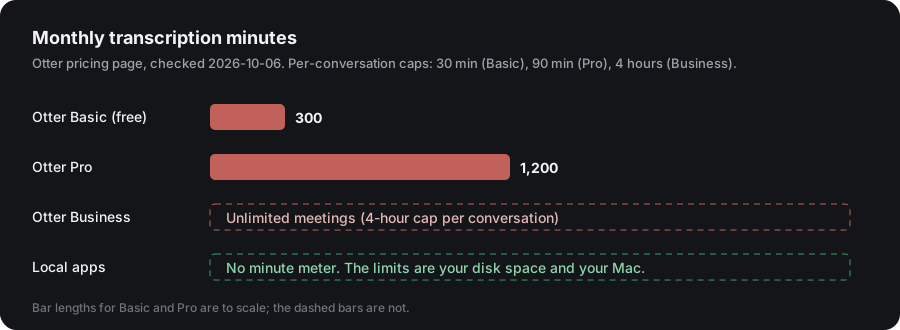
<p>If you hit minute caps (a common complaint in Reddit threads about Otter), the reason to switch is simple: local apps have no minute meter, because the only limits are your disk and your Mac.</p>

<figure class="post-figure">
  <img src="/routine-meeting/assets/blog/otter-minutes-vs-local.svg" alt="Bar chart of Otter's monthly transcription minutes: 300 on Basic, 1,200 on Pro, unlimited meetings on Business, against local apps with no minute meter" width="900" height="330" loading="lazy" style="width:100%;height:auto;display:block;border-radius:12px" />
  <figcaption>Otter's monthly minutes by plan, from its pricing page, versus local apps.</figcaption>
</figure>

<h2 id="what-a-year-costs-side-by-side">What a year costs, side by side</h2>

<p>Prices from each product’s own page, checked 2026-10-07. Otter’s Pro price is per user.</p>

<table>
  <thead>
    <tr>
      <th>Option</th>
      <th>Cost for 12 months</th>
      <th>Where it runs</th>
    </tr>
  </thead>
  <tbody>
    <tr>
      <td>Otter Basic</td>
      <td>Free: 300 minutes a month, 30 minutes per conversation</td>
      <td>Hosted</td>
    </tr>
    <tr>
      <td>Otter Pro</td>
      <td>About $100 billed annually ($8.33 a month), or about $204 paid monthly ($16.99)</td>
      <td>Hosted</td>
    </tr>
    <tr>
      <td>Fathom</td>
      <td>Free plan with unlimited recordings, transcripts and summaries. Premium is $16 a month billed annually</td>
      <td>Hosted. Bot-free capture is in beta, per its pricing page</td>
    </tr>
    <tr>
      <td>Routine Meeting</td>
      <td>Free</td>
      <td>On your Mac</td>
    </tr>
    <tr>
      <td>MacWhisper</td>
      <td>64 EUR once (Pro)</td>
      <td>On your Mac</td>
    </tr>
    <tr>
      <td>Whisper Notes</td>
      <td>$14 once on Mac, per its site</td>
      <td>On your Mac</td>
    </tr>
    <tr>
      <td>Hapi</td>
      <td>Free tier for voice notes only. Meeting features are the Local plan at 79 EUR once</td>
      <td>On your Mac</td>
    </tr>
  </tbody>
</table>

<p>If the limit that bothers you is Otter’s 300 free minutes, the simplest free cloud alternative is Fathom, and the simplest free local one is an app with no meter. If you would rather pay once than monthly, MacWhisper, Whisper Notes and Hapi are one-time purchases.</p>

<h2 id="interviews-journalists-and-long-recordings">Interviews, journalists and long recordings</h2>

<p>Many people leave Otter because of file limits, not meetings. On Basic, Otter allows 3 lifetime file imports and 30 minutes per conversation. On Pro it allows 10 imports a month and 90 minutes per file. A two-hour interview or a long podcast does not fit either.</p>

<p>For recorded files, use a file transcriber on your Mac. MacWhisper and Whisper Notes both transcribe files locally. Whisper Notes states unlimited minutes with no monthly cap. Routine Meeting is built for live calls: it starts when it hears a conversation, so it is not the right tool for transcribing an audio file you already have. If you record a call with it, there is no per-file limit.</p>

<h2 id="the-alternatives-step-by-step">The alternatives, step by step</h2>

<h3 id="routine-meeting-free">Routine Meeting (free)</h3>

<p>A menu-bar app that starts by itself when it hears the pattern of a real call: your microphone active plus audio coming from another app. That means it also catches Slack huddles, Discord, FaceTime and calls relayed to your Mac, with no per-app setup.</p>

<ul>
  <li><strong>Capture:</strong> microphone plus system audio through macOS ScreenCaptureKit. Audio only, no video. macOS shows its purple recording indicator.</li>
  <li><strong>Transcription:</strong> WhisperKit on your Mac’s Neural Engine, with your side and the other side transcribed separately and labeled “What you said” and “What others said”.</li>
  <li><strong>Summaries:</strong> optional. Use a fully local model (no key, no network call), or your own Gemini key, which sends the transcript text, never the audio.</li>
  <li><strong>Account and price:</strong> none and free.</li>
  <li><strong>Requirements:</strong> Apple Silicon, macOS 13 or later.</li>
</ul>

<figure class="post-figure">
  <img src="/routine-meeting/screenshots/app-main.webp" alt="Routine Meeting main window: meeting list, weekly stats and the Task Radar" width="1577" height="997" loading="lazy" style="width:100%;height:auto;display:block;border-radius:12px" />
  <figcaption>Routine Meeting's main window on a Mac.</figcaption>
</figure>

<p>Limits: closed source, speaker labels are you versus everyone else (not one name per person), no team sharing, no integrations, no SOC 2 report, and no phone or web app.</p>

<h3 id="macwhisper-pro-64-eur-one-time">MacWhisper (Pro: 64 EUR, one time)</h3>

<p>A mature transcriber for files and dictation that also records meetings in Zoom, Teams, Webex and more, with automatic start and end detection, no bots, and local models. Its docs describe meeting recording as a beta and say all participants are grouped as one speaker for now.</p>

<h3 id="biscotti-free-source-available">Biscotti (free, source-available)</h3>

<p>Fully local pipeline: Whisper V3 Turbo, per-person speaker separation and a Gemma model for summaries. Needs macOS 15 or later and recommends 16 GB of RAM.</p>

<h3 id="macparakeet-free-gpl-30">MacParakeet (free, GPL-3.0)</h3>

<p>Open source, no account. Local speech recognition, separates you from everyone else, writes audio to disk every second so a crash does not lose a meeting. Summaries go to the AI provider you configure. Needs macOS 14.2 or later and Apple Silicon.</p>

<h3 id="echo99-free">echo99 (free)</h3>

<p>Per its own site: records your mic and your Mac’s audio locally with no bot, transcribes on-device in 25 languages (same with Wi-Fi off), recognizes recurring voices and labels them by name using local voice matching, and generates on-device summaries with key points, decisions and action items. Free, no account, no minute limits. Needs macOS 14.4 or later and runs on Apple silicon and Intel. Its live transcription is marked experimental, and it sends an anonymous install ID at launch for update checks. Treat these as the vendor’s claims.</p>

<h3 id="muesli">Muesli</h3>

<p>Per its own site: a free, open-source macOS app for Apple Silicon Macs that captures meeting audio from your computer without a bot and transcribes on-device with Parakeet or Whisper models, and adds hotkey dictation. Its page did not say whether summaries run locally or in the cloud, or whether it labels speakers, so I leave those blank.</p>

<h3 id="hapi-macos-14-from-79-eur-once-for-meetings">Hapi (macOS 14+, from 79 EUR once for meetings)</h3>

<p>Per its site, Hapi is a Mac app that transcribes locally and auto-detects Zoom, Meet, Teams, Slack, WhatsApp and a few more apps from a list. The Local plan adds meeting features, speaker labels and on-device AI summaries. Routine Meeting detects a call by its audio pattern instead of a list of apps, and it is free.</p>

<h3 id="shadow">Shadow</h3>

<p>Per its site, Shadow is a Mac-only app that detects meetings, joins no calls, and says transcription happens on your Mac with audio staying on the device. It offers a free trial. I could not confirm its price from the page I read.</p>

<h3 id="whisper-notes-14-once-on-mac">Whisper Notes ($14 once on Mac)</h3>

<p>Per its comparison page, Whisper Notes transcribes fully on the device with Whisper Large V3 Turbo and Parakeet V3, supports offline meeting recording on the direct-download Mac version, labels speakers on the device after the recording ends, and has no monthly minute cap. It needs Apple Silicon.</p>

<h3 id="fathom-free-hosted">Fathom (free, hosted)</h3>

<p>Not a local option. Per its pricing page, Fathom’s free plan includes unlimited recordings, transcripts and AI summaries, and recording is bot-free in beta or bot-based. It does not say where data is processed. Choose it if the limit that bothers you is Otter’s minute cap and you accept a hosted service.</p>

<h2 id="side-by-side">Side by side</h2>

<table>
  <thead>
    <tr>
      <th> </th>
      <th>Otter</th>
      <th>Routine Meeting</th>
      <th>MacWhisper</th>
      <th>Biscotti</th>
      <th>MacParakeet</th>
      <th>echo99</th>
    </tr>
  </thead>
  <tbody>
    <tr>
      <td>Bot-free on Mac</td>
      <td>Yes, desktop app</td>
      <td>Yes</td>
      <td>Yes</td>
      <td>Yes</td>
      <td>Yes</td>
      <td>Yes</td>
    </tr>
    <tr>
      <td>Transcription</td>
      <td>Hosted service</td>
      <td>On your Mac</td>
      <td>On your Mac</td>
      <td>On your Mac</td>
      <td>On your Mac</td>
      <td>On your Mac</td>
    </tr>
    <tr>
      <td>Account needed</td>
      <td>Yes</td>
      <td>No</td>
      <td>No</td>
      <td>No</td>
      <td>No</td>
      <td>No</td>
    </tr>
    <tr>
      <td>Price</td>
      <td>Free tier; Pro from $8.33 annual</td>
      <td>Free</td>
      <td>Free tier; Pro 64 EUR once</td>
      <td>Free</td>
      <td>Free</td>
      <td>Free</td>
    </tr>
    <tr>
      <td>Minute caps</td>
      <td>300 free, 1,200 Pro</td>
      <td>None</td>
      <td>None</td>
      <td>None</td>
      <td>None</td>
      <td>None</td>
    </tr>
    <tr>
      <td>Speaker labels</td>
      <td>Speaker identification (paid plans)</td>
      <td>You vs others</td>
      <td>One speaker (beta docs)</td>
      <td>Per person</td>
      <td>You vs others</td>
      <td>Local recognition</td>
    </tr>
    <tr>
      <td>Team sharing and integrations</td>
      <td>Yes</td>
      <td>No</td>
      <td>Export and automations</td>
      <td>No</td>
      <td>No</td>
      <td>No</td>
    </tr>
    <tr>
      <td>Compliance report</td>
      <td>SOC 2 Type 2, HIPAA</td>
      <td>None</td>
      <td>None</td>
      <td>None</td>
      <td>None</td>
      <td>None</td>
    </tr>
    <tr>
      <td>Platforms</td>
      <td>Web, Mac, Windows, iOS, Android, Chrome</td>
      <td>Mac</td>
      <td>Mac</td>
      <td>Mac</td>
      <td>Mac</td>
      <td>Mac</td>
    </tr>
    <tr>
      <td>Mac requirements</td>
      <td>macOS 12.3+ (desktop app)</td>
      <td>Apple Silicon, macOS 13+</td>
      <td>Not checked</td>
      <td>macOS 15+, Apple Silicon</td>
      <td>macOS 14.2+, Apple Silicon</td>
      <td>macOS 14.4+, Apple silicon or Intel</td>
    </tr>
  </tbody>
</table>

<h2 id="which-should-you-choose">Which should you choose?</h2>

<ul>
  <li><strong>You work in a team, share notes, and need integrations or a compliance report:</strong> stay with Otter, or choose a hosted tool. A local app will not give you shared workspaces.</li>
  <li><strong>You are on a Mac and want audio kept on your machine, with no account and no minute meter:</strong> pick a local app. Routine Meeting if you want it to start with every call, in any app. Biscotti if you want per-person speaker labels and a fully local summary. MacParakeet if you want open source.</li>
  <li><strong>You also transcribe lots of files and dictate:</strong> MacWhisper.</li>
  <li><strong>You want to pay once, not monthly:</strong> MacWhisper, Whisper Notes or Hapi, all one-time purchases.</li>
  <li><strong>You want free and accept a hosted service:</strong> Fathom’s free plan has no minute cap.</li>
  <li><strong>You mostly need it for interviews or voice notes:</strong> a file-based transcriber is cheaper than a meeting subscription; the Reddit threads on this topic point to Whisper-based tools.</li>
</ul>

<h2 id="moving-from-otter-to-a-local-app">Moving from Otter to a local app</h2>

<ol>
  <li><strong>Export what you need.</strong> Download your important transcripts from Otter before cancelling; nothing local will import them.</li>
  <li><strong>Install and grant permissions.</strong> Microphone, and Screen and System Audio Recording. The second name sounds scary, but only audio is captured.</li>
  <li><strong>Run it side by side for a week.</strong> Keep Otter for team meetings while you test the local app on your own calls.</li>
  <li><strong>Decide about summaries.</strong> Local summaries are private but weaker than a large cloud model. Routine Meeting lets you choose per need.</li>
  <li><strong>Check recording consent.</strong> Local does not change the law; many places require telling participants you are recording.</li>
</ol>

<h2 id="faq">FAQ</h2>

<p><strong>Is there a free alternative to Otter?</strong> Yes. Fathom has a free hosted plan with unlimited recordings and summaries. On your Mac, Routine Meeting and several other apps are free with no minute meter.</p>

<p><strong>What are the limits of Otter’s free plan?</strong> 300 minutes a month, 30 minutes per conversation, and 3 lifetime file imports, per Otter’s pricing page.</p>

<p><strong>Is there an Otter app for Mac?</strong> Yes. Otter has a desktop app for Mac and Windows that records without a bot, and a web app.</p>

<p><strong>Does Otter put a bot in my call?</strong> Otter’s Notetaker can join a meeting as a participant, and the desktop app lets you record without it.</p>

<p><strong>Is Otter free on Mac?</strong> There is a free plan with 300 minutes a month and 30 minutes per conversation.</p>

<p><strong>What is a good Otter alternative that works offline?</strong> Apps that transcribe on your device, such as Routine Meeting, Biscotti, MacParakeet and echo99, can transcribe without a connection once their models are downloaded.</p>

<p><strong>Will a local app match Otter’s accuracy and summaries?</strong> Whisper-family models are strong on clear speech. Local summaries are weaker than cloud ones, and none of the local apps offer shared workspaces or an AI chat across your whole team’s meetings.</p>

<h2 id="sources-checked-2026-10-06-cost-table-and-added-options-2026-10-07">Sources (checked 2026-10-06, cost table and added options 2026-10-07)</h2>

<ul>
  <li>Otter: pricing page, privacy and security page, desktop app page, help article “Otter Desktop App (Mac and Windows)”, and the launch post “Introducing the Otter Desktop App” (Oct 7, 2025), all on otter.ai</li>
  <li>echo99: echo99.app and echo99.app/otter-alternative</li>
  <li>Muesli: muesli.works and muesli.works/otter-ai-alternative</li>
  <li>MacWhisper: macwhisper.com and docs.macwhisper.com</li>
  <li>MacParakeet: macparakeet.com/meetings</li>
  <li>Biscotti: github.com/scosman/Biscotti</li>
  <li>Fathom: fathom.ai/pricing</li>
  <li>Whisper Notes: whispernotes.app/whisper-notes-vs-otter-ai</li>
  <li>Hapi: speakhapi.com</li>
  <li>Shadow: shadow.do</li>
</ul>]]></content><author><name>Matheus Guimarães</name></author><category term="blog" /><summary type="html"><![CDATA[Otter now has a bot-free Mac app, so the real differences are where your audio goes, accounts, minute caps and price. Otter compared with Routine Meeting and five other Mac options, with dated sources.]]></summary></entry><entry><title type="html">Private meeting transcription on Mac: where your audio actually goes (and 5 apps compared)</title><link href="https://mathguimaraes.github.io/routine-meeting/blog/private-meeting-transcription-mac/" rel="alternate" type="text/html" title="Private meeting transcription on Mac: where your audio actually goes (and 5 apps compared)" /><published>2026-10-06T00:00:00+00:00</published><updated>2026-10-06T00:00:00+00:00</updated><id>https://mathguimaraes.github.io/routine-meeting/blog/private-meeting-transcription-mac</id><content type="html" xml:base="https://mathguimaraes.github.io/routine-meeting/blog/private-meeting-transcription-mac/"><![CDATA[<p><strong>Short answer:</strong> for private meeting transcription on a Mac, pick an app that records and transcribes on your device, with no bot in the call and no account. MacWhisper, MacParakeet, Biscotti, Meetily and Routine Meeting all do that. Cloud-first tools such as Granola send your meeting audio to third-party transcription providers, even though they do not keep the recording. The real differences between the on-device apps are price, how much setup you need, whether the AI summary stays local, and how mature each app is.</p>

<p><em>Disclosure: I build Routine Meeting, one of the apps below. Everything about the other apps comes from their own websites and docs, checked on 2026-10-06. If something has changed, tell me and I will fix it.</em></p>

<h2 id="what-private-actually-means-for-a-meeting-recorder">What “private” actually means for a meeting recorder</h2>

<p>“Private” is used loosely. A meeting passes through four steps, and each one can be local or not:</p>

<ol>
  <li><strong>Capture.</strong> A bot joins the call as a participant (cloud), or the app records your Mac’s audio (local).</li>
  <li><strong>Transcription.</strong> Speech to text runs on your Mac, or the audio is uploaded to a provider.</li>
  <li><strong>Summary.</strong> An AI turns the transcript into notes, either with a local model or by sending the transcript text to a cloud model.</li>
  <li><strong>Storage.</strong> Recordings and notes live on your disk, or on the vendor’s servers.</li>
</ol>

<p>A tool can be bot-free and still upload your audio in step 2. So ask four questions of any app: does a bot join, where is the speech recognized, where does the summary run, and where is everything stored.</p>

<h2 id="the-five-apps-step-by-step">The five apps, step by step</h2>

<h3 id="macwhisper-pro-64-eur-one-time">MacWhisper (Pro: 64 EUR, one time)</h3>

<p>MacWhisper started as a file transcriber and now also records meetings. Its site says it records online meetings with no bots joining, and lists automatic meeting start and end detection for Zoom, Teams, Webex, Skype, Chime, Discord and more. Transcription uses local models. You can add AI summaries by connecting your own provider keys, or a local model through Ollama or LM Studio. Meeting recording is listed under the Pro plan; there is a free tier for file transcription.</p>

<p>Good for: people who also transcribe lots of audio files, podcasts and dictation, and want one mature tool for all of it.</p>

<p>Limits to know: its docs describe meeting recording as a beta, and say all participants are grouped as one speaker for now. The docs also recommend manual recording for critical meetings, because of possible data loss in the beta. Meeting recording needs the standalone version, not the Mac App Store one.</p>

<h3 id="macparakeet-free-gpl-30">MacParakeet (free, GPL-3.0)</h3>

<p>MacParakeet is free, open source under GPL-3.0, and needs no account or subscription. Speech recognition runs on your Mac. Its meeting recorder separates you from everyone else, fragments audio to disk every second so a crash does not lose the recording, and has no time limit. Summaries go through the “Ask” feature with the AI provider you choose (OpenAI, Anthropic, Ollama, LM Studio, OpenRouter), so only transcript text leaves the Mac, and only if you pick a cloud provider.</p>

<p>Good for: people who want open source and a recorder that is built to survive crashes.</p>

<p>Limits to know: it needs macOS 14.2 or later and Apple Silicon. Summaries are not built in; you wire up your own provider.</p>

<h3 id="biscotti-free-source-available">Biscotti (free, source-available)</h3>

<p>Biscotti records your mic and your Mac’s system audio, with no bot, and runs everything locally: Whisper V3 Turbo for transcription, Pyannote for separating speakers, and a Gemma model for summaries, action items and titles. It uses calendar data to help name speakers. It is free with no account.</p>

<p>Good for: people who want the most complete fully local pipeline, including per-person speaker separation and local summaries, with nothing to configure.</p>

<p>Limits to know: the license is PolyForm Perimeter, so the source is available but it is not open source in the usual sense. It needs macOS 15 or later, Apple Silicon, and recommends 16 GB of RAM because the summary model is large.</p>

<h3 id="meetily-free-community-edition-mit">Meetily (free community edition, MIT)</h3>

<p>Meetily is open source (MIT) and runs on macOS, Windows and Linux. It transcribes with Whisper or Parakeet models and summarizes locally through Ollama, or with a cloud provider if you prefer. Its README says all processing happens locally.</p>

<p>Good for: people on more than one operating system, or who want to inspect and modify the code.</p>

<p>Limits to know: speaker identification is not in the free community edition; it is listed as a Pro feature, along with custom templates and calendar integration. Setup is more hands-on than a menu-bar app.</p>

<h3 id="granola-the-cloud-assisted-comparison">Granola (the cloud-assisted comparison)</h3>

<p>Granola is popular, bot-free, and polished, so people often ask whether it counts as private. Its security page says it does not store meeting audio and transcribes in real time on the desktop. It also says it uses third-party transcription providers (it names Deepgram and AssemblyAI) and AI providers (OpenAI and Anthropic) for summaries. Notes are stored in its US-hosted AWS environment, encrypted at rest and in transit. The company is SOC 2 Type 2 audited. It states that third parties may not train on your data, but that Granola itself trains on anonymized data, with an opt-out for individuals.</p>

<p>Good for: teams that want a hosted, audited product with sharing and integrations.</p>

<p>Limits to know for privacy: your audio goes to external providers for transcription, and notes live on its servers. If your rule is “audio never leaves my Mac”, it does not meet it. That is a legitimate choice for many teams; just make it knowingly.</p>

<h2 id="where-routine-meeting-fits">Where Routine Meeting fits</h2>

<p>Routine Meeting is a menu-bar app that starts by itself. Instead of integrating with Zoom or Teams, it notices the pattern of a real two-way conversation (your microphone active plus audio playing from another app), so it also catches Slack huddles, Discord, FaceTime or a call relayed to the Mac, with no per-app setup.</p>

<ul>
  <li><strong>Capture:</strong> your microphone plus system audio through macOS ScreenCaptureKit. No bot, no video, audio only. macOS shows its purple recording indicator while it records; that is the operating system and cannot be hidden.</li>
  <li><strong>Transcription:</strong> WhisperKit on your Mac’s Neural Engine. Your side and the other side are transcribed separately and labeled “What you said” and “What others said”.</li>
  <li><strong>Summaries:</strong> optional. You can use your own Gemini API key (only the transcript text is sent, never audio), or a fully local model through MLX with no key and no network call.</li>
  <li><strong>Storage:</strong> everything stays on your Mac. Old recordings are cleaned up after a number of days you choose, but only once a transcript exists. Transcripts and summaries are kept.</li>
  <li><strong>Cost:</strong> free, no account.</li>
</ul>

<p>Limits, stated plainly:</p>

<ul>
  <li>It is <strong>closed source</strong>. If you need to audit the code, choose MacParakeet or Meetily.</li>
  <li>Speaker labels are <strong>you versus everyone else</strong>, not a name per person. Biscotti does separate individual speakers.</li>
  <li>No integrations (CRM, Slack, Notion) and no SOC 2 report.</li>
  <li>If you turn on cloud summaries with a Gemini key, transcript text goes to Google. Use the local model if that is not acceptable.</li>
</ul>

<h2 id="side-by-side">Side by side</h2>

<table>
  <thead>
    <tr>
      <th> </th>
      <th>Routine Meeting</th>
      <th>MacWhisper</th>
      <th>MacParakeet</th>
      <th>Biscotti</th>
      <th>Meetily</th>
      <th>Granola</th>
    </tr>
  </thead>
  <tbody>
    <tr>
      <td>Bot joins the call</td>
      <td>No</td>
      <td>No</td>
      <td>No</td>
      <td>No</td>
      <td>No</td>
      <td>No</td>
    </tr>
    <tr>
      <td>Speech recognition</td>
      <td>On your Mac</td>
      <td>On your Mac (local models)</td>
      <td>On your Mac</td>
      <td>On your Mac</td>
      <td>On your Mac</td>
      <td>Third-party providers</td>
    </tr>
    <tr>
      <td>Summary</td>
      <td>Local model, or your Gemini key</td>
      <td>Your keys, or Ollama / LM Studio</td>
      <td>Your chosen provider</td>
      <td>Local (Gemma)</td>
      <td>Ollama, or cloud</td>
      <td>Cloud (OpenAI, Anthropic)</td>
    </tr>
    <tr>
      <td>Speaker labels</td>
      <td>You vs others</td>
      <td>One speaker (beta docs)</td>
      <td>You vs others</td>
      <td>Per person</td>
      <td>Pro only</td>
      <td>Not checked</td>
    </tr>
    <tr>
      <td>Starts automatically</td>
      <td>Yes, any app</td>
      <td>Yes, listed apps</td>
      <td>Not checked</td>
      <td>Not checked</td>
      <td>Not checked</td>
      <td>Calendar based, not checked</td>
    </tr>
    <tr>
      <td>Price</td>
      <td>Free</td>
      <td>Free tier; Pro 64 EUR once</td>
      <td>Free</td>
      <td>Free</td>
      <td>Free; Pro paid</td>
      <td>Not checked</td>
    </tr>
    <tr>
      <td>Source</td>
      <td>Closed</td>
      <td>Closed</td>
      <td>GPL-3.0</td>
      <td>Source-available</td>
      <td>MIT</td>
      <td>Closed</td>
    </tr>
    <tr>
      <td>Compliance</td>
      <td>None</td>
      <td>Not stated</td>
      <td>Not stated</td>
      <td>Not stated</td>
      <td>Not stated</td>
      <td>SOC 2 Type 2</td>
    </tr>
  </tbody>
</table>

<p>“Not checked” means I did not verify it on the vendor’s site and will not guess.</p>

<h2 id="which-one-should-you-pick">Which one should you pick?</h2>

<ul>
  <li><strong>You want the most local, no setup:</strong> Biscotti, if your Mac is on macOS 15 with enough RAM. Otherwise Routine Meeting with the local model.</li>
  <li><strong>You want open source you can audit:</strong> MacParakeet (GPL-3.0) or Meetily (MIT).</li>
  <li><strong>You also transcribe lots of files and dictate:</strong> MacWhisper.</li>
  <li><strong>You want it to start with every call, in any app, without picking apps from a list:</strong> Routine Meeting.</li>
  <li><strong>You need sharing, integrations or a SOC 2 report:</strong> a hosted tool such as Granola, accepting that audio goes to third-party providers.</li>
</ul>

<h2 id="a-quick-checklist-before-you-trust-any-private-claim">A quick checklist before you trust any “private” claim</h2>

<ol>
  <li>Does it say where speech recognition runs? “On-device” and “local” should be stated for transcription, not just for storage.</li>
  <li>What does the AI summary send out, and can you turn it off or make it local?</li>
  <li>Can you test it with Wi-Fi off? A local transcriber still works in airplane mode.</li>
  <li>Is the license and the source something you can check?</li>
  <li>What does it do if the app crashes mid-meeting?</li>
</ol>

<h2 id="recording-consent">Recording consent</h2>

<p>Local does not change the law. Many places require telling the other people that you are recording, and some require their consent. Tell participants before you record, whichever app you use.</p>

<h2 id="faq">FAQ</h2>

<p><strong>Is it legal to record a meeting on my Mac?</strong> It depends on where you and the other participants are. Many jurisdictions require notice or consent from everyone. Ask first.</p>

<p><strong>Does a no-bot app mean nothing leaves my Mac?</strong> No. Bot-free only describes how the audio is captured. Check where transcription and summaries run.</p>

<p><strong>Can these apps work offline?</strong> Apps that transcribe on your device can transcribe without internet. Summaries need a local model to be fully offline.</p>

<p><strong>Do I need a powerful Mac?</strong> Apple Silicon is the common requirement. Local summary models are the heavy part, so more RAM helps.</p>

<p><strong>Is Routine Meeting free?</strong> Yes, with no account.</p>

<h2 id="sources-checked-2026-10-06">Sources (checked 2026-10-06)</h2>

<ul>
  <li>MacWhisper: macwhisper.com and docs.macwhisper.com (record meetings article)</li>
  <li>MacParakeet: macparakeet.com/meetings</li>
  <li>Biscotti: github.com/scosman/Biscotti</li>
  <li>Meetily: github.com/Zackriya-Solutions/meetily</li>
  <li>Granola: granola.ai/security</li>
</ul>]]></content><author><name>Matheus Guimarães</name></author><category term="blog" /><summary type="html"><![CDATA[Which Mac meeting transcribers keep audio on your device, which send text or audio to the cloud, and what each one costs. Compared with dated sources.]]></summary></entry><entry><title type="html">v1.8: Search your meetings</title><link href="https://mathguimaraes.github.io/routine-meeting/updates/v1-8-search-your-meetings/" rel="alternate" type="text/html" title="v1.8: Search your meetings" /><published>2026-08-10T00:00:00+00:00</published><updated>2026-08-10T00:00:00+00:00</updated><id>https://mathguimaraes.github.io/routine-meeting/updates/v1-8-search-your-meetings</id><content type="html" xml:base="https://mathguimaraes.github.io/routine-meeting/updates/v1-8-search-your-meetings/"><![CDATA[<p>Routine Meeting 1.8 adds search to the Meetings sidebar. Type a few words and it filters across the meeting title, AI summary, insights, and the full transcript text — so you don’t need to remember which meeting something was said in, just roughly what was said.</p>

<p>Also fixed a small toolbar layout issue where the “Meetings” label sat too close to the edge of its pill.</p>

<p><a href="https://github.com/mathguimaraes/routine-meeting/releases/tag/v1.8">Download v1.8</a> · <a href="https://github.com/mathguimaraes/routine-meeting/releases/tag/v1.8">Full release notes</a></p>]]></content><author><name>Matheus Guimarães</name></author><category term="updates" /><summary type="html"><![CDATA[Filter across title, summary, insights, and full transcript text right from the Meetings sidebar.]]></summary></entry><entry><title type="html">v1.7: A morning digest, and a transcription hang finally tracked down</title><link href="https://mathguimaraes.github.io/routine-meeting/updates/v1-7-morning-digest/" rel="alternate" type="text/html" title="v1.7: A morning digest, and a transcription hang finally tracked down" /><published>2026-07-30T00:00:00+00:00</published><updated>2026-07-30T00:00:00+00:00</updated><id>https://mathguimaraes.github.io/routine-meeting/updates/v1-7-morning-digest</id><content type="html" xml:base="https://mathguimaraes.github.io/routine-meeting/updates/v1-7-morning-digest/"><![CDATA[<p>The headline fix in 1.7 is one that took a while to pin down: transcription could hang indefinitely for some users, and the root cause turned out to be where the WhisperKit and local-LLM model cache lived — inside <code class="language-plaintext highlighter-rouge">~/Documents</code>, which iCloud Drive can partially sync and evict files from on demand, including mid-transcription. The cache now lives in Application Support instead, outside iCloud’s sync scope entirely.</p>

<p>Alongside that:</p>

<ul>
  <li><strong>Morning digest notification.</strong> A summary of yesterday’s meetings and open tasks now arrives as a notification a few minutes after your Mac wakes, instead of only showing up if you happen to open the app.</li>
  <li><strong>Daily Report now defaults to yesterday.</strong> The home screen’s report opens on yesterday’s recap instead of today’s mostly-empty one, since that’s almost always what you actually want first thing in the morning.</li>
  <li><strong>Updated app icon rendering for macOS 26 Tahoe</strong>, using Apple’s new layered <code class="language-plaintext highlighter-rouge">.icon</code> format for proper full-bleed display with the Liquid Glass treatment.</li>
  <li><strong>Force Microphone Input recovery improved</strong> after repeated Bluetooth reconnects — a continuation of the fail-open work from v1.4–v1.5.</li>
  <li><strong>Anonymous daily usage ping</strong>, toggleable in Settings → Privacy. It’s a random ID with no meeting content, name, or email attached — just enough to see rough usage in aggregate.</li>
</ul>

<p><a href="https://github.com/mathguimaraes/routine-meeting/releases/tag/v1.7">Download v1.7</a> · <a href="https://github.com/mathguimaraes/routine-meeting/releases/tag/v1.7">Full release notes</a></p>]]></content><author><name>Matheus Guimarães</name></author><category term="updates" /><summary type="html"><![CDATA[Yesterday's recap now lands as a notification each morning, plus a fix for transcriptions that hung indefinitely on iCloud-synced Macs.]]></summary></entry></feed>