Meeting transcription without a bot: bot, botless and on-device, and where your audio actually goes
Short answer: you can transcribe a meeting without a bot joining the call. Apps do it by recording your computer’s microphone and system audio, so nobody extra appears in the participant list. But “no bot” only describes how the meeting is captured. It says nothing about where the audio is processed, who else can read the notes, or whether the other people know. Three models exist: a meeting bot that joins the call, a botless app that records on your computer and processes in the cloud, and an on-device app that transcribes on your computer too. Whichever you pick, you still have to tell people you are recording.
Disclosure: I build Routine Meeting, an on-device app. Facts about other products come from their own pages and from Google results, checked on 2026-10-08. Where I could not open a vendor page, I say so. If something has changed, tell me and I will fix it.
Three models, one table
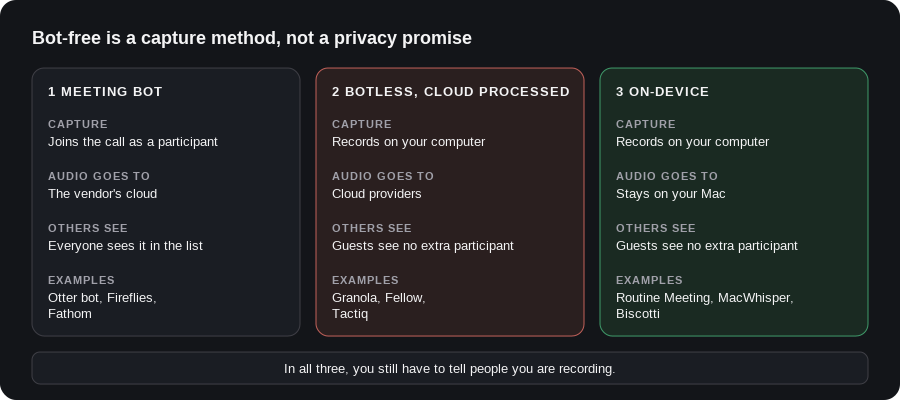
| 1. Meeting bot | 2. Botless, cloud processed | 3. On-device | |
|---|---|---|---|
| How it captures | A notetaker joins as a participant | Your computer’s mic and system audio, or captions | Your computer’s mic and system audio |
| Where speech becomes text | Vendor’s cloud | Cloud providers (varies) | On your computer |
| Others see | A named participant | No extra participant; some tools notify people inside your organization | No extra participant |
| Examples | Otter’s notetaker, Fireflies, Fathom’s bot option | Granola, Fellow, Otter’s desktop app, Tactiq | Routine Meeting, MacWhisper, Biscotti, MacParakeet, Meetily |
| Typical strength | Works for everyone on the call, shared by default | Polished notes, team features | Audio stays with you, no account |
| Typical limit | A visible bot changes how people talk | Audio or text leaves your machine | Little team sharing |
There is also a fourth option that needs no extra app: the meeting platform’s own recording or notes. Wispr Flow’s guide (checked 2026-10-08) notes that when the platform records, everyone sees a recording indicator. Zoom’s page for its My Notes feature, per its Google listing, says it works across Zoom, Teams, Google Meet and other platforms with no bots. I could not open Zoom’s page, so check how it handles your data before relying on it.
What each model sends where
Meeting bots. The notetaker is a participant, so the vendor’s servers receive the call. That is how bots work, and the participant list tells everyone it is there.
Botless apps. The word botless is about the participant list. What happens next differs by product:
- Granola: per its security page it does not store meeting audio, but it uses third-party transcription providers (it names Deepgram and AssemblyAI) and AI providers (OpenAI and Anthropic), and notes live on its US-hosted AWS environment.
- Fellow: per its botless recording page, the Mac and Windows desktop app captures audio locally with no bot, supporting Zoom, Meet, Teams, Slack huddles, WhatsApp, FaceTime, phone calls and in-person meetings. Recordings are stored in Fellow under your organization’s policies and the raw audio can be deleted automatically after AI processing. The page does not say where the audio is processed.
- Wispr Notetaker: per Wispr’s guide it records on your Mac or Windows device and does not join the call. It says audio is encrypted and kept only temporarily to create the transcript and for quality and troubleshooting, then removed automatically.
- Otter’s desktop app: a bot-free desktop app since October 2025, with the hosted storage described in its privacy page.
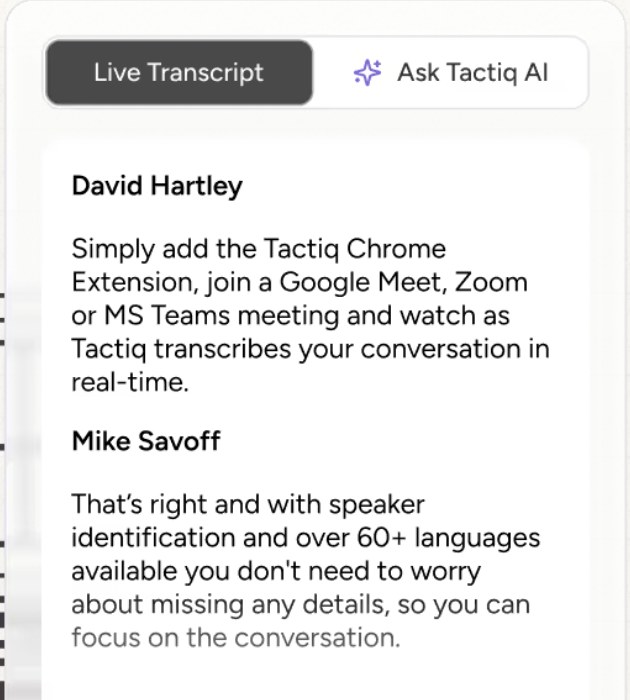
- Tactiq: per its listing, a Chrome extension that captures live captions without a bot, so it works in the browser versions of meeting tools.
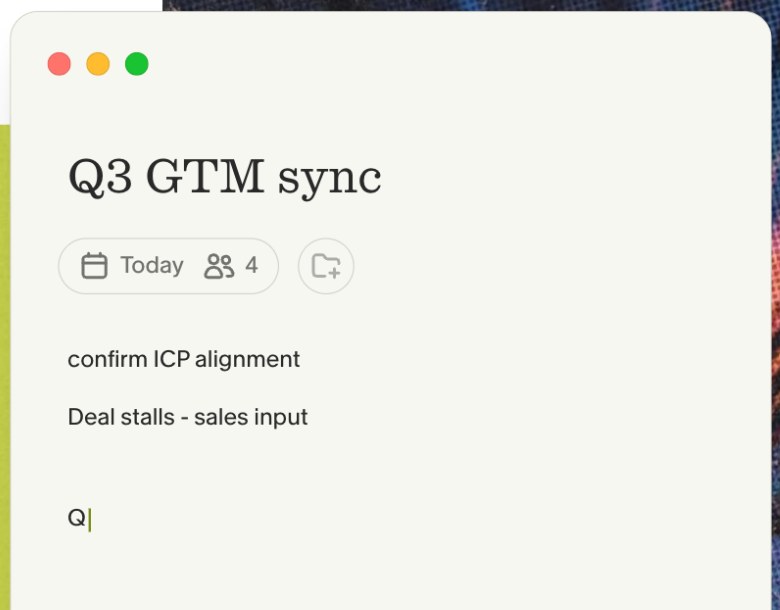
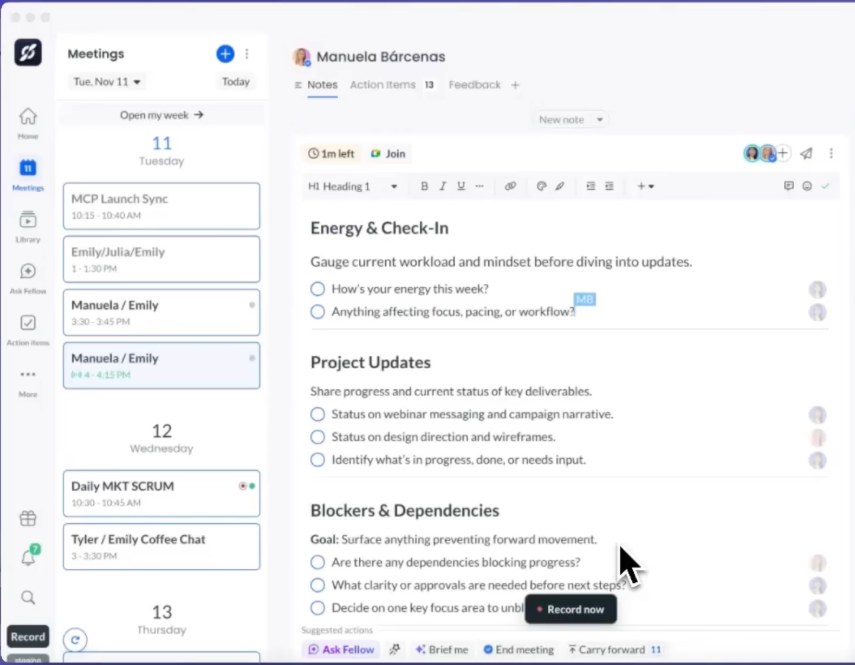
On-device apps. Capture and speech recognition both happen on your computer. Summaries are the part to check: some use a local model, some let you add your own cloud key.
- Routine Meeting: Parakeet v3 on your Mac (Whisper, through WhisperKit, is an option). Summaries use a local model or your own Gemini key, which sends only transcript text. Free, no account, closed source, Apple Silicon.
- MacWhisper: local models. Its docs describe meeting recording as a beta.
- Biscotti, MacParakeet, Meetily: local pipelines with different licenses and requirements. They are compared in the private transcription guide.
What other people see
In a botless or on-device app, other participants see nothing in the participant list. That is the point, and also the risk: people cannot learn about the recording from the meeting itself.
- On your side, macOS shows its purple recording indicator while an app records system audio. The operating system controls that and an app cannot hide it.
- Platform notices differ. When you use a platform’s own AI notes, it can announce itself to everyone. Fellow says internal participants get a notice while external guests do not.
- Screens give it away. If you share your screen with the notes app open, everyone can see it.
Routine Meeting does not tell the other side that it is recording. That is your job.
Consent: bot-free does not remove it
A visible bot is not consent either. Circleback’s guide (February 2026) says no jurisdiction treats a bot’s name in the participant list as informed agreement, and that valid consent means people understand what is recorded, how it is used, who can access it and how long it is kept. It also says the obligation is the same whether a bot joins or audio is captured locally.
Law firms and chambers of commerce have published similar advice in 2026. A California Chamber of Commerce alert (September 2026, as shown in search results; I did not read the full text) says you typically cannot legally record a workplace conversation without the other person’s consent. Rules differ by country and state, and this is not legal advice.
A workable habit:
- Say it at the start of the call: “I’m recording this to take notes. Is that okay?”
- Put it in the invitation for recurring meetings.
- If someone says no, stop recording and take notes by hand.
- Check your company’s policy. Many employers block unapproved AI tools.
How to choose
- You need shared notes, integrations and a compliance report: a hosted tool, bot or botless. Read where audio goes first.
- You want a polished notepad and accept cloud processing: a botless app such as Granola or Fellow.
- You want audio and transcripts to stay on your computer: an on-device app.
- You want it to start by itself in any call app: Routine Meeting notices the pattern of your microphone plus audio from another app, so it also catches Slack huddles, Discord and FaceTime without per-app setup.
- You only need one meeting transcribed once: the platform’s own notes, or Apple Notes, may be enough.
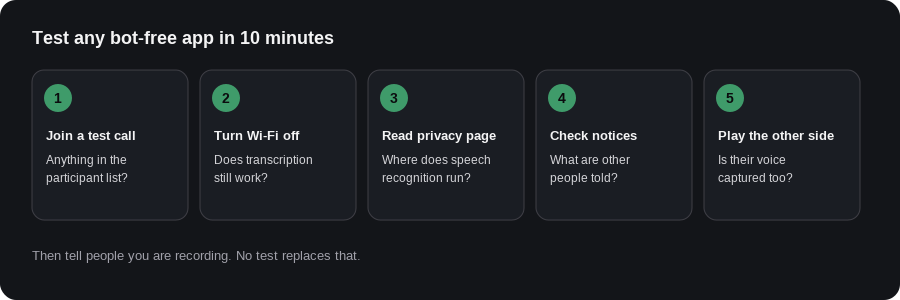
How to test any app in 10 minutes
- Join a test call with a friend. Does anything appear in the participant list?
- Turn Wi-Fi off after the call. Does transcription still work? If not, it needs the cloud.
- Read the privacy page for three things: where speech recognition runs, what the summary sends out, how long audio is kept.
- Check what other people are told, if anything.
- Confirm it also records the other side, not just your microphone.
FAQ
Can I transcribe a meeting without a bot? Yes. Apps that record your microphone and system audio, or browser tools that capture captions, do not join the call.
Can other people tell I am using one? Not from the participant list. They may notice if you share your screen, and some platforms and tools show notices. Tell them anyway.
Is a bot-free app private? Not by itself. Check where speech recognition runs and where notes are stored.
Do I need consent if no bot joins? The rules about recording do not depend on a bot. Ask first.
Does Routine Meeting label each speaker? It separates your side from everyone else’s. It does not name each person in a group call.
Does it work offline? Recording and transcription do. A local summary model also works offline once downloaded. A Gemini summary needs a connection.
Sources (checked 2026-10-08)
- Wispr Flow: wisprflow.ai/notetaker/record-a-meeting-without-a-bot, “How to record a meeting without a bot joining”
- Circleback: circleback.ai/blog/recording-consent-for-ai-meeting-notes, “Recording consent for AI meeting notes” (Feb 24, 2026)
- Fellow: fellow.ai/features/botless-recording
- Granola: granola.ai/security
- Otter: otter.ai desktop app help article and launch post (Oct 7, 2025)
- Zoom: zoom.com AI note taker page, as shown in Google results (page not opened)
- Tactiq: tactiq.io, as shown in Google results and its home page
- California Chamber of Commerce alert, September 2026, as shown in Google results (not read in full)
- Google and Google AI Mode results for “meeting transcription without bot”, “how to record a meeting without a bot”, “zoom transcription without bot”, 2026-10-08