1:1 meeting notes on Mac: record and transcribe privately (and how 6 options compare)
Short answer: two kinds of app are sold for 1:1s, and they solve different problems. Planning tools (Fellow, Lattice, 15Five, Windmill and similar) hold the shared agenda, goals and follow-ups. Recorders (Routine Meeting, Granola, MacWhisper, Biscotti) capture what was said and write the notes for you. If you manage people on a Mac and want the conversation itself written up without a bot in the call, use a recorder. If you want a shared agenda and review history with your team, use a planning tool. Many managers use both. Because a 1:1 often contains performance feedback, where the audio goes matters more than for most meetings.
Disclosure: I build Routine Meeting, one of the apps below. Facts about the other apps come from their own pricing and product pages and from Google search results, checked on 2026-10-07. If something has changed, tell me and I will fix it.
Two jobs, two kinds of app
When people search for “1:1 meeting notes app”, the results are mostly lists of planning software: shared agendas, templates, goals, review cycles. Those tools help you prepare and track. They usually do not listen to the conversation. A recorder does the opposite: it listens, transcribes and summarizes, and leaves planning to you.
| Planning tools | Recorders | |
|---|---|---|
| Examples | Fellow, Lattice, 15Five, Windmill, Leadr | Routine Meeting, Granola, MacWhisper, Biscotti |
| Main job | Shared agenda, goals, follow-ups, review history | Transcript, summary, action items |
| Needs the other person to use it | Often yes (shared workspace) | No |
| Where your data lives | Vendor cloud | Depends: on your Mac, or vendor cloud |
| Best when | You run a team process | You want notes without typing during the conversation |
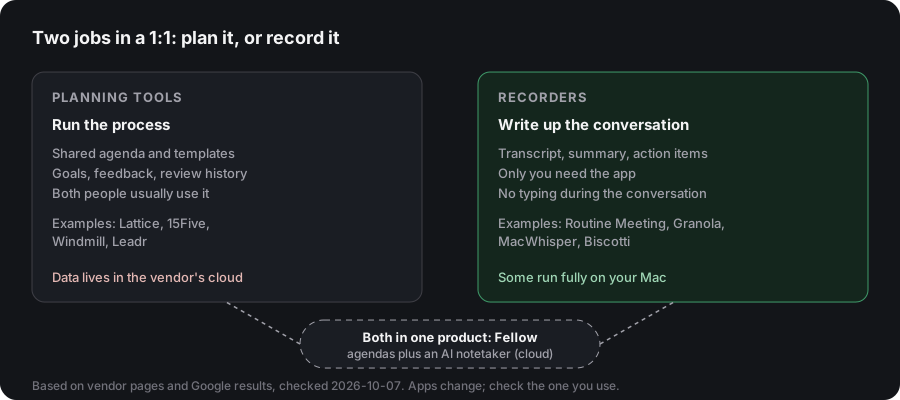
Some products straddle both. Fellow, for example, offers agendas and an AI notetaker, per its pricing page. If you need both in one product and accept a cloud service, look there first.
What to ask before you record a 1:1
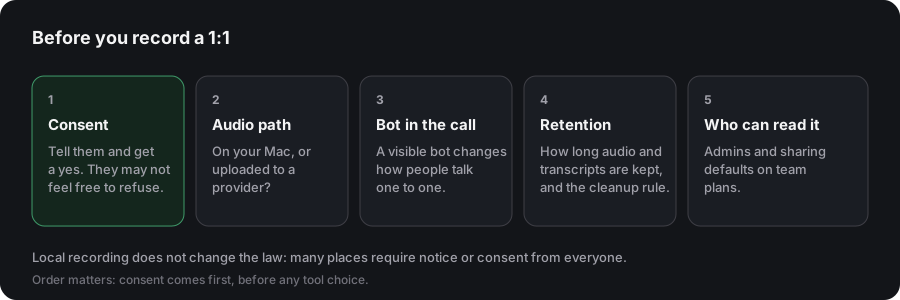
A 1:1 is not a normal meeting. Check these first:
- Consent. Tell the other person and get a yes. Recording laws differ by place, and a direct report may not feel free to refuse. Many managers record only with an explicit invitation, and keep their own typed notes as the default.
- Where the audio goes. Does speech recognition run on your Mac, or is audio uploaded? Performance feedback is exactly what you may not want on a vendor’s servers.
- Whether a bot joins. A visible bot in a one-to-one conversation changes how people talk.
- How long it keeps data. Old audio should not pile up. Look for automatic cleanup, and for a clear rule on what is kept.
- Who can read it. On a team plan, notes may be visible to admins. Check the sharing defaults.
The options, step by step
Routine Meeting (free)
A menu-bar app that starts by itself when it hears the pattern of a real call: your microphone active plus audio coming from another app. It does not care which app makes the sound, so a Zoom 1:1, a Slack huddle, a FaceTime call or a phone call relayed to your Mac are all captured with no per-app setup.
- Capture: microphone plus system audio. Audio only, no video. macOS shows its purple recording indicator.
- Transcription: on your Mac, with WhisperKit. Your side and the other side are transcribed separately and labeled “What you said” and “What others said”. In a two-person 1:1 that is effectively one name per person.
- Summaries: optional. A local model with no key and no network call, or your own Gemini key (only the transcript text is sent, never the audio).
- Insights: an optional pass that first works out what kind of meeting it was (a 1:1, a standup, a client call and so on) and then comments only on what matters for that kind. If the meeting was low stakes, it says there is nothing notable instead of inventing coaching.
- Storage: on your Mac. Audio is deleted after a number of days you choose, but only once a transcript exists. Transcripts and summaries stay.
- Account and price: none, and free.
- Requirements: Apple Silicon, macOS 13 or later.
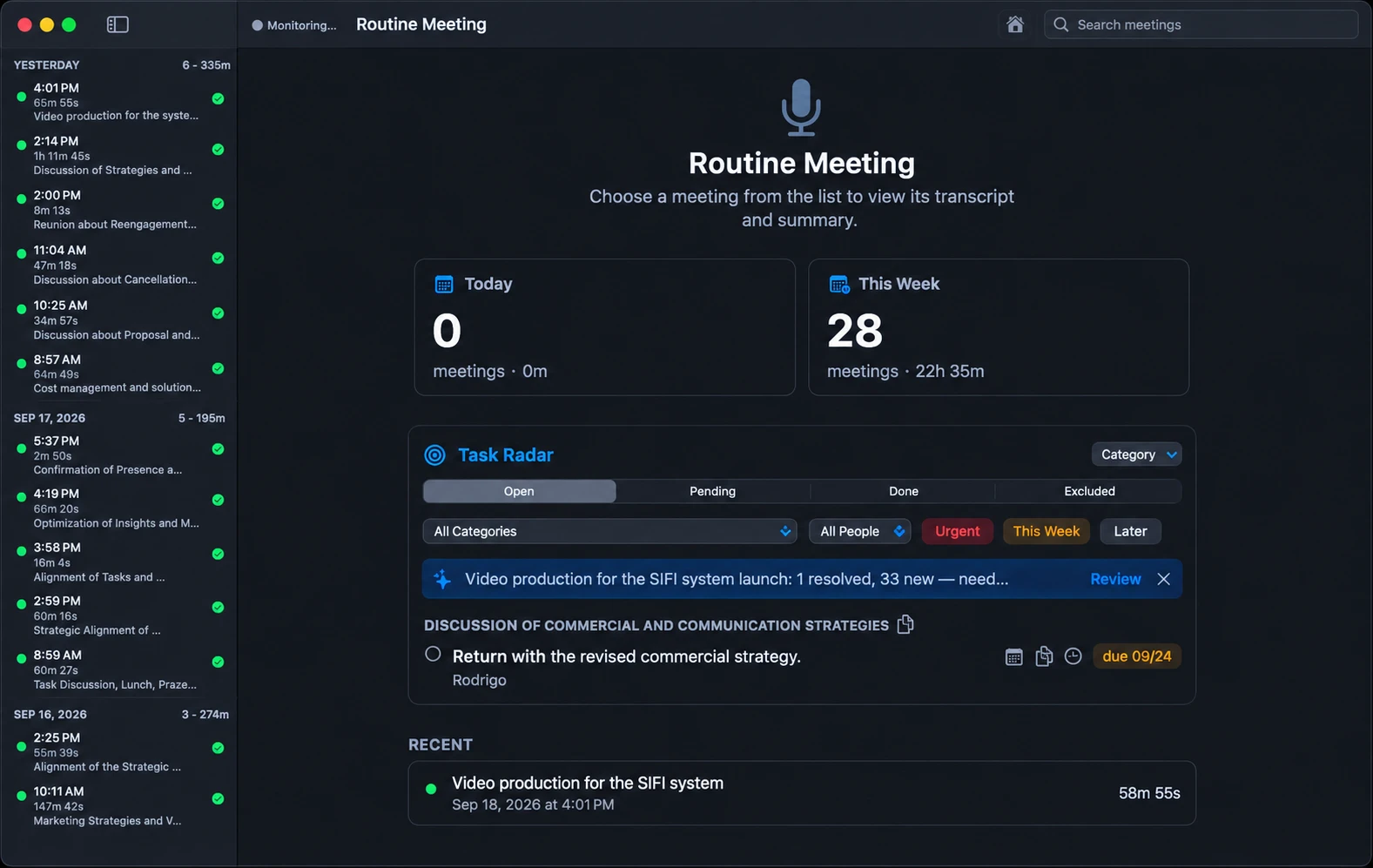
Limits: closed source, no shared agenda or goal tracking, no team sharing, no integrations, no SOC 2 report. Speaker labels are you versus everyone else, so it will not name three people in a group meeting.
Granola
A well-known bot-free notepad: you type a few lines during the meeting and it merges them with the transcript. Per its pricing page (checked 2026-10-07): a free Basic plan with a 30-day meeting history, Business at $14 per user per month, and Enterprise at $35. It runs on desktop and mobile. Its security page says it does not store meeting audio, uses third-party transcription and AI providers, and keeps notes on its US-hosted cloud, so audio does leave your Mac.
Fellow
A meeting platform built around shared agendas, with an AI notetaker. Per its pricing page (checked 2026-10-07): a free plan with 5 lifetime AI notes and recordings per user, Team at $7 per user per month billed annually, Business at $15, Enterprise at $25. Data is hosted on AWS. A good fit if the whole team will adopt it, and a heavier choice if you only want private notes for yourself.
MacWhisper (Pro: 64 EUR, one time)
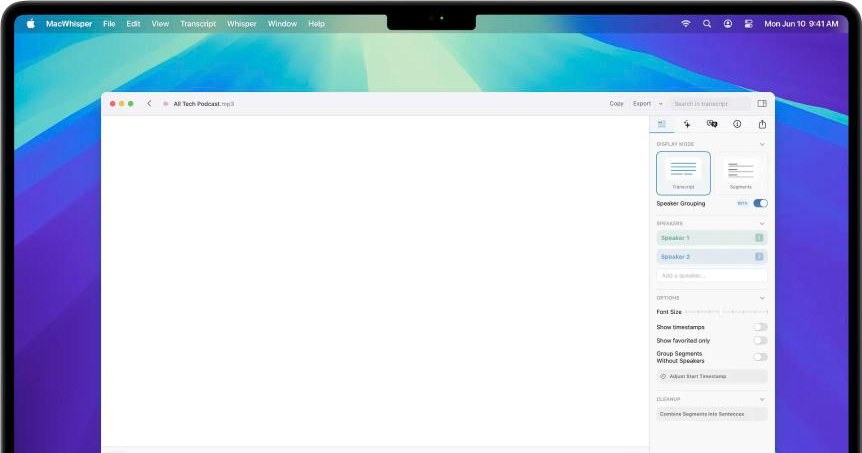
A mature transcriber that also records meetings on-device with automatic start detection. Its docs describe meeting recording as a beta and say all participants are grouped as one speaker for now, which makes a 1:1 transcript harder to read. Better if you also transcribe lots of files.
Biscotti (free, source-available)
A fully local pipeline: transcription, per-person speaker separation and a local Gemma model for summaries. It needs macOS 15 or later and recommends 16 GB of RAM.
Apple Notes with a paper notebook (free)
The honest baseline. In Reddit threads on “what tools do you use for 1:1s”, many managers say they use a OneNote file per person or a paper notebook, and that listening matters more than capturing every word. Apple Notes can also record audio and transcribe it, per Apple Support. If you only hold a few 1:1s a week, this may be enough.
Side by side
| Routine Meeting | Granola | Fellow | MacWhisper | Biscotti | |
|---|---|---|---|---|---|
| Kind | Recorder | Recorder | Planner plus notetaker | Recorder / file transcriber | Recorder |
| Bot in the call | No | No | Not checked | No | No |
| Speech recognition | On your Mac | Third-party providers | Cloud | On your Mac | On your Mac |
| Summary | Local model or your Gemini key | Cloud | Cloud | Your keys or local | Local (Gemma) |
| Speaker labels | You vs others | Not checked | Not checked | One speaker (beta docs) | Per person |
| Shared agenda | No | No | Yes | No | No |
| Price | Free | Free (30-day history); $14 | Free (5 lifetime); from $7 | Free tier; Pro 64 EUR once | Free |
| Account | None | Yes | Yes | None | None |
“Not checked” means I did not verify it and will not guess.
Which one should you pick?
- You are a manager, you want 1:1 notes kept private on your Mac, and nobody else needs access: a local recorder. Routine Meeting if you want it to start with every call in any app, Biscotti if you want per-person labels and a fully local summary and have a recent Mac.
- You want a shared agenda, goals and review history across the team: Fellow or another planning tool, accepting cloud storage.
- You want a polished notepad and are fine with cloud processing: Granola.
- You also transcribe many recordings and dictate: MacWhisper.
- You hold few 1:1s and care most about presence: Apple Notes and a notebook.
How to record a 1:1 on a Mac (Routine Meeting)
- Install and grant permissions. Microphone, then Screen and System Audio Recording. The second name sounds scary, but only audio is captured.
- Pick your summary mode. Choose the on-device model if the conversation is sensitive, or add a Gemini key for better summaries on routine ones.
- Ask first. Tell the other person you will record and why, and say they can say no.
- Join the call. Recording starts after a short delay and stops when the call ends.
- Read the summary and action items. Edit before you share anything, and send commitments to the other person yourself.
- Let old audio clear. Set the retention days so recordings do not pile up. Transcripts remain.
FAQ
Can I record a 1:1 on a Mac without a bot? Yes. Apps that record your microphone and your Mac’s system audio do not join the call.
Is it legal to record a 1:1 with a direct report? It depends on where you both are. Many places require notice or consent from everyone. Ask first, and follow your company’s policy.
Will it work for in-person 1:1s? Routine Meeting is built around calls, using the pattern of microphone plus system audio. For in-room conversations, a file-based transcriber such as MacWhisper is a better fit.
Do I need an internet connection? Not for recording or transcription. A local summary model also works offline once its files are downloaded. A Gemini summary needs a connection.
Will it label who said what? In a two-person call it labels you and the other person separately. It does not name each person in a larger meeting.
Sources (checked 2026-10-07)
- Fellow: fellow.ai/pricing
- Granola: granola.ai/pricing and granola.ai/security
- MacWhisper: macwhisper.com and docs.macwhisper.com
- Biscotti: github.com/scosman/Biscotti
- Planning tools mentioned (Lattice, 15Five, Windmill, Leadr): names as listed in Google results for 1:1 meeting software, 2026-10-07
- Reddit r/managers, “What tools do you use to conduct one-on-one meetings?”