Transcribe Zoom meetings on a Mac without a bot (and without hosting the call)
Short answer: to transcribe a Zoom meeting on a Mac without a bot, run an app that records your Mac’s microphone and system audio while you are on the call. It works whether you are the host or a guest, on a free or paid Zoom account, and nobody extra appears in the participant list. Zoom’s own options need either host permission or a paid plan, and since May 18, 2026 Zoom no longer lets users save or download closed captions. Apps that transcribe on your Mac, such as Routine Meeting, MacParakeet and Whisper Notes, keep the audio on your computer. Tell the other people you are transcribing, whichever way you do it.
Disclosure: I build Routine Meeting, one of the apps below, and it is in public beta. Facts about Zoom and other products come from their own pages and Google results, checked on 2026-10-11. I have not tested every step below on a current Zoom client; where that matters I say so. If something has changed, tell me and I will fix it.
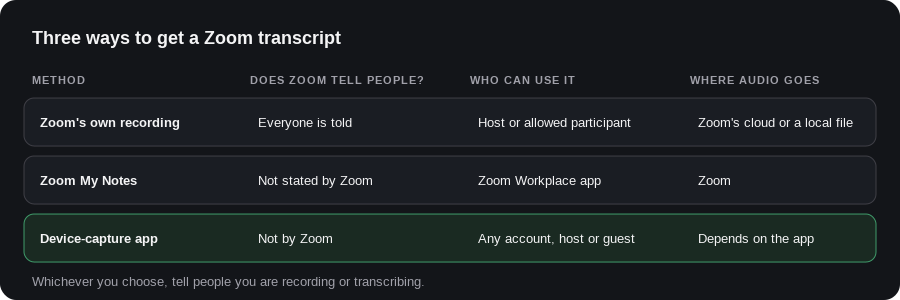
The three ways to get a Zoom transcript
| Zoom’s own tools | Device-capture app | Record, then transcribe the file | |
|---|---|---|---|
| Needs host permission or a paid plan | Often yes | No | Only if you use Zoom’s recording |
| Works as a guest | Limited | Yes | If recording is allowed |
| Bot in the call | No | No | No |
| Where audio goes | Zoom | Depends on the app | Where you send the file |
| Effort | Settings in the web portal | Install once | Manual, after the call |
1. Zoom’s own tools
- Cloud recording transcript. In the Zoom web portal you turn on cloud recording and the audio transcript, then record to the cloud. When the meeting ends you can download a transcript file. This usually needs a paid account and a host who set it up before the meeting.
- Captions. Live captions still work, but per Zoom’s support article, starting May 18, 2026 users can no longer save or download closed captions. Granola’s and other guides describe the same change, and Zoom’s own FAQ says the “Full transcript” and “Save captions” settings were removed.
- My Notes. Zoom’s guide to meeting transcription (published October 5, 2026) says My Notes captures a live transcript with speaker attribution inside the Zoom Workplace app, with no bot, and that transcripts are private by default. AI summaries need eligible paid plans, and the guide says it works natively with Zoom meetings and may support select third-party platforms. Zoom does not say there that audio stays on your device.
If you host your own paid Zoom meetings and are happy with Zoom holding the data, these tools are the simplest. The gap is guest calls, free accounts, and anyone who wants the text on their own Mac.
2. A device-capture app (no bot)
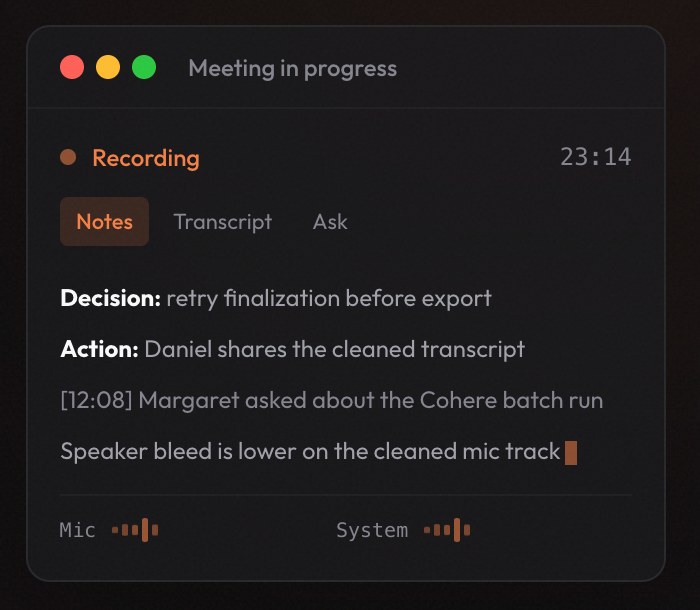
These apps listen to your microphone and to the sound coming out of your Mac, so they hear both sides of the call without joining it.
- Routine Meeting (free, no account, Apple Silicon, macOS 14.2 or later, closed source, public beta): starts by itself when it notices a two-way conversation, whichever app is making the sound, so it also covers Meet, Teams and Slack huddles. Parakeet v3 transcribes on your Mac (Whisper is an option). Summaries use a local model or your own Gemini key.
- MacParakeet (free, GPL-3.0, macOS 14.2 or later, Apple Silicon): its site has a Zoom recorder page; speech recognition runs on your Mac, and summaries go to the provider you configure.
- Whisper Notes ($14 once on Mac, per its site): on-device transcription with offline meeting recording on the direct-download version.
- Granola (free plan with 30-day history): captures on your Mac but uses third-party transcription providers, so audio leaves your computer.
- Fellow’s botless recording: per its page, a desktop app that supports Zoom without a bot; the page does not say where audio is processed.
3. Record the call, then transcribe the file
If you are allowed to record in Zoom, or you capture the screen with QuickTime, you can drop the audio file into an on-device transcriber afterwards. It is free and has no live text, but it is manual, and recording in Zoom tells everyone in the meeting.
Setup on a Mac: Routine Meeting
This is the flow Routine Meeting’s setup guide walks you through. I have described it from the app’s design, so test it on your own Zoom call before relying on it.
- Install and open it. It lives in the menu bar and has no Dock icon unless a window is open.
- Allow Microphone. This is how it hears you.
- Allow Screen & System Audio Recording. The name sounds alarming, but only audio is captured, never video or screen content. This is how it hears everyone else on the call.
- Turn on Launch at Login. The app is only useful if it is running when a call starts.
- Choose summaries. Either a local model with no key, or your own Gemini key (only transcript text is sent). Skip this if you only want the transcript.
- Join your Zoom call as usual. Recording starts after a short delay (5 seconds by default, and only once it also hears audio from another app) once it sees your microphone active and audio playing from another app. It stops after the call ends.
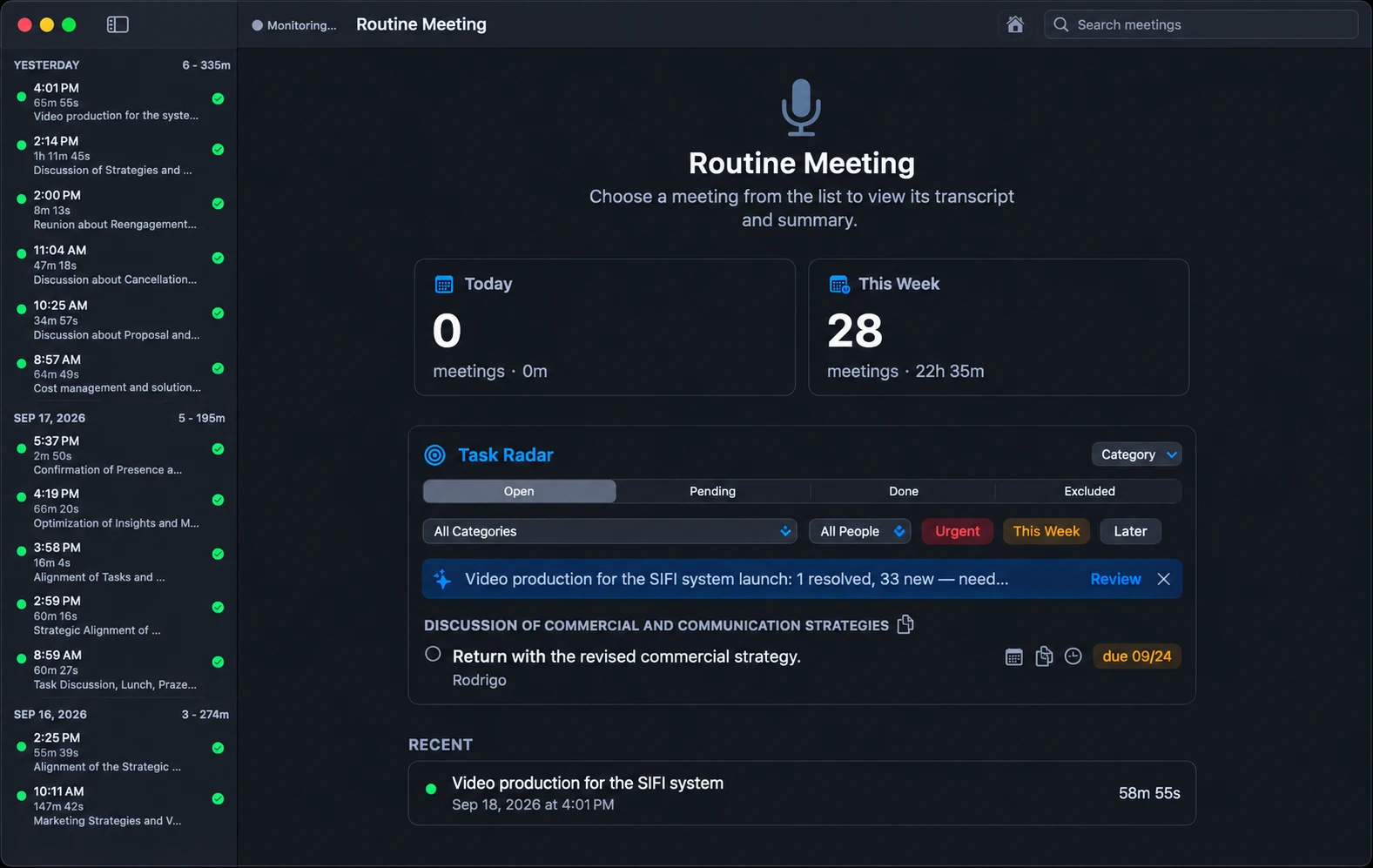
- Read the transcript. Your side is labeled “What you said” and everyone else’s “What others said”.
What other people see
- In Zoom: nothing from the app. It does not join the call and does not use Zoom’s recording feature. Zoom notifies people when you use Zoom’s own recording, not when another app is listening, per Zoom Community answers, and Zoom’s Active Apps Notifier article says that tool does not alert other participants about apps outside Zoom.
- On your Mac: macOS shows its purple recording indicator while an app records system audio. The operating system controls it, and no app can hide it.
- Reports of masked windows: Zoom Community posts from July 2026 describe a message that Zoom meeting windows are masked to prevent screen capture when a third-party recorder runs. Audio capture is a different mechanism from screen capture and Routine Meeting records only audio, but I have not tested this against a current Zoom client. If your call goes silent in the recording, tell me.
- Screen sharing: if you share your screen with the notes window open, everyone sees it.
Consent
Recording laws depend on where you and the other participants are, and many places require everyone’s consent. A visible bot is not consent, and neither is a hidden app. A short line at the start works: “I’m transcribing this for my notes. Is that okay?” If someone says no, stop. Company policy also counts, because many employers restrict unapproved AI tools. This is not legal advice.
Limits
- Routine Meeting labels you versus everyone else. It does not name each remote participant in a group call.
- It is Mac only, needs Apple Silicon and macOS 14.2 or later, and is in public beta.
- Whisper-family models handle clear speech well, but crosstalk, accents and poor connections reduce accuracy.
- There is no live transcript on screen while the call runs; the text is produced after the meeting.
FAQ
Can I transcribe a Zoom meeting I did not host? Yes, with a device-capture app, because it records on your own computer. Tell the participants.
Can I transcribe Zoom without a paid account? Yes. Zoom’s saved transcripts need a paid plan, but a device-capture app does not depend on your Zoom plan.
Does it work offline? Transcription runs on your Mac, so it works without a connection once the models are downloaded. Summaries from a Gemini key need internet; a local model does not.
Will Zoom tell people I am transcribing? Not when you use another app; Zoom announces its own recording. You still need to tell people yourself.
Does it work for Google Meet and Teams too? Routine Meeting detects the pattern of a call, not a specific app, so it should. See the guide to meeting transcription without a bot.
Where is the audio stored? On your Mac. Old recordings are deleted after the number of days you set, but only once a transcript exists.
Sources (checked 2026-10-11)
- Zoom: zoom.com/en/blog/how-to-transcribe-meeting (Oct 5, 2026)
- Zoom support: Saving closed captions in a meeting and the captions FAQ (May 2026), as shown in Google results
- Zoom support: Using Meeting transcripts and Using audio transcription for cloud recordings, as shown in Google results
- Granola: granola.ai/security and its Zoom transcription guides (June 2026), as shown in Google results
- Fellow: fellow.ai/features/botless-recording
- MacParakeet: macparakeet.com/meetings
- Whisper Notes: whispernotes.app/whisper-notes-vs-otter-ai
- Zoom Community, July 2026 posts on third-party recording and masked windows, as shown in Google results (not read in full)
- Google and Google AI Mode results for “zoom transcription without bot”, “zoom transcription locally”, “zoom meeting transcription mac”, “how to transcribe zoom meetings on mac”, 2026-10-11