Record and transcribe Slack huddles, FaceTime and Discord calls on a Mac
Short answer: none of these three apps has a general way to get a private transcript of a call on your Mac. Slack has AI huddle notes, but only on paid plans, they notify everyone, and they do not work with guests. FaceTime can record an audio call with one other person into Notes, and both people hear a notice. Discord has no built-in transcription in the sources I checked. An app that records your microphone and your Mac’s system audio, such as Routine Meeting, works the same way in all three and transcribes on your Mac. Whichever route you take, tell the people on the call.
Disclosure: I build Routine Meeting, one of the apps below, and it is in public beta. I tested it on a Slack huddle, a FaceTime call and a Discord call on 2026-10-21, and it started and transcribed each one. That is one Mac and one day, so treat it as a test, not a guarantee. Facts about Apple and Slack come from their own help pages, read on 2026-10-21. Facts about other products come from their pages and Google results from the same day. If something has changed, tell me and I will fix it.
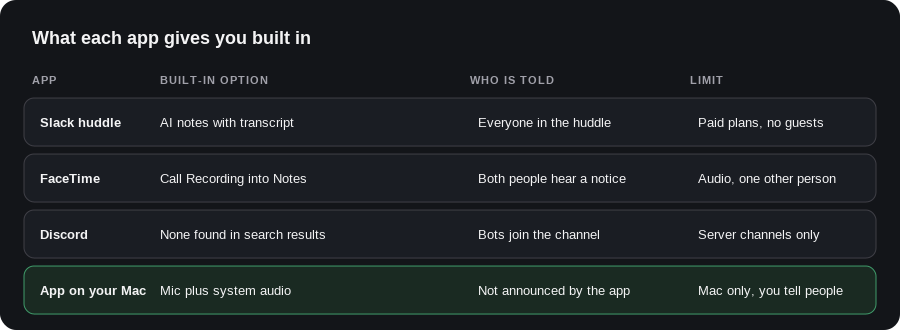
What each app gives you built in
Slack huddles
Per Slack’s help article, AI notes capture key takeaways and action items from the huddle in a canvas, with the transcript embedded. They are available on paid plans to members, not guests. Someone has to turn them on, unless a channel is set to start them automatically. Everyone in the huddle is notified when notes start, stop or are canceled, anyone in the channel or DM can view the notes, and Slack says it is not possible to use AI notes in huddles with external people or guests.
That is a fair choice for an internal team that wants shared notes. It does not help on a free plan, with a guest, or if you want the text to stay on your Mac. Search results also show the older routes: OBS, a screen recorder, or a dedicated Mac app. Screen-recording shortcuts on a Mac record your microphone, not the other people’s audio, which is why guides point to OBS or an app that captures system audio.
FaceTime
Per Apple Support, you can record a FaceTime audio call when you are talking to one other person, and view the transcript in the Notes app’s Call Recordings folder. Both participants hear a notice that the call is being recorded. With Apple Intelligence you can summarize the call, subject to language and region. Apple’s guide shows this under its macOS 27 and macOS Tahoe 26 versions, so check which one your Mac runs.
Two limits matter here. First, the feature is for audio calls with one other person, and Apple’s page does not describe it for video or group calls. Second, everyone hears the notice, which is the right behavior but not always what you want for your own notes. Google results also list FaceTime Live Captions, which show text on screen during a call on an Apple Silicon Mac, processed on the device. They do not save a transcript afterwards.
Discord
Discord does not have a built-in call transcription feature in the guides I found. The common routes are a recording bot that joins a server voice channel (the Craig bot is the one named most often), a screen or audio recorder, or a Mac app that listens to your Mac’s audio. A bot works only in server channels you have permission to add it to, and it is visible in the channel.
An app on your Mac works the same way in all three
A Mac app can hear a call without being part of it by recording your microphone, and the audio your Mac plays. The app does not need to know about Slack, FaceTime or Discord. It sees a conversation: your microphone is active and audio is coming out of another app.
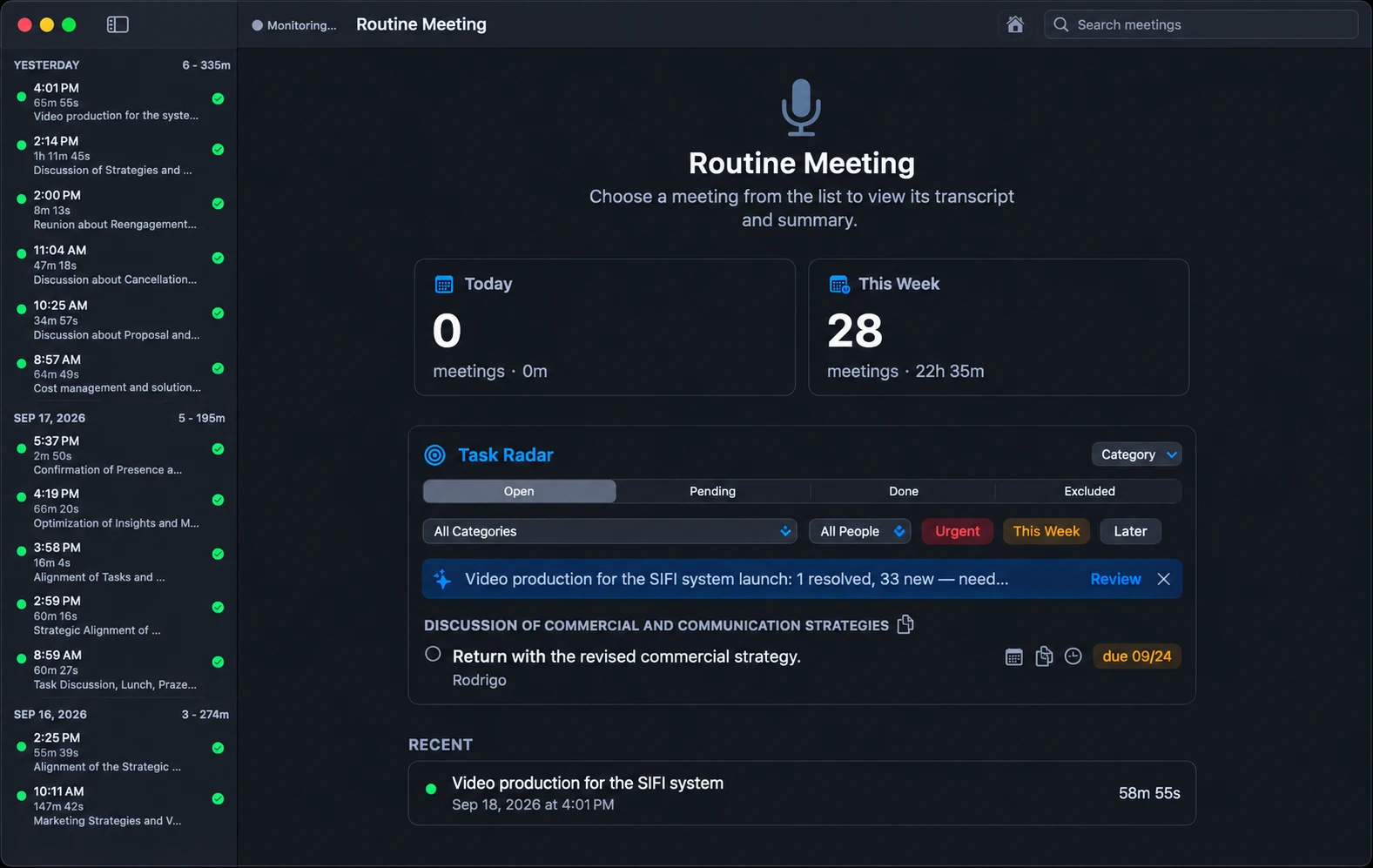
Routine Meeting works this way. It starts after a short delay (5 seconds by default, and only once it also hears audio from another app) once it sees that pattern, ends by default when the call app lets go of the microphone and the system audio has been quiet for about 45 seconds, and transcribes on your Mac with Parakeet v3 (Whisper, through WhisperKit, is an option). Your side is labeled “What you said” and everyone else’s “What others said”. Summaries are optional, from a local model or your own Gemini key (only transcript text is sent).
Other apps in the same category appear in these searches. Per their pages, echo99 and Weeve describe local recording of Slack huddles with no bot, MetaWhisp uses a hotkey you press to arm the recorder before a FaceTime, Webex or Discord call, and TranscribeX detects calls and transcribes locally. I have not tested those. MacWhisper also detects meetings, but per its docs it asks you to click Record, and FaceTime is not supported for detection because of macOS privacy restrictions. For that comparison, see the MacWhisper alternative guide.
Set it up once
- Install it. Routine Meeting lives in the menu bar and has no Dock icon unless a window is open.
- Allow Microphone. This is how it hears you.
- Allow Screen & System Audio Recording. The name sounds alarming, but only audio is captured, never video or screen content. This is how it hears the other people.
- Turn on Launch at Login, so it is running when a call starts.
- Choose summaries or skip them. A local model, your own Gemini key, or transcript only.
- Join your call as usual. Slack huddle, FaceTime or Discord, the steps are the same.
The Zoom guide covers the same setup in more detail.
What other people see
- In the call: nothing from the app. It does not join, and it does not use Slack’s, Apple’s or Discord’s recording features. Routine Meeting does not tell the other side that it is recording, which is your job.
- On your Mac: macOS shows its purple recording indicator while an app records system audio.
- Screens: if you share your screen with the notes window open, everyone sees it.
Consent
Recording laws depend on where you and the others are. Many places require everyone’s consent, and rules for private calls with friends or family differ from rules at work. Apple and Slack both notify participants for a reason. A short line at the start works: “I’m transcribing this for my notes. Is that okay?” If someone says no, stop. Company policy matters too, especially in Slack. This is not legal advice.
Limits
- It labels you versus everyone else. It does not name each person in a group call.
- Mac only, Apple Silicon, macOS 14.2 or later, public beta.
- Audio from another source can look like a call. A WhatsApp voice message, for example, can trigger a false start, because speech with pauses resembles a conversation.
- Whisper-family models handle clear speech well, but crosstalk, accents and poor connections reduce accuracy.
- There is no live text on screen during the call; the transcript is produced after it ends.
FAQ
Can I transcribe a Slack huddle on a free plan? Slack’s AI notes are on paid plans. A Mac app that records your microphone and system audio does not depend on your Slack plan.
Can I transcribe a FaceTime video call? Apple’s recording feature is described for audio calls with one other person. An app that records your Mac’s audio can capture a video call’s sound too. Tell the other person.
Does Discord transcribe calls? Not that I found. Bots, recorders and Mac apps are the usual routes.
Does the app notify the other people? No. That is why you should tell them yourself.
Does it work offline? Transcription runs on your Mac, so it works without a connection once the models are downloaded. A Gemini summary needs internet, and a local model does not.
Where is the audio stored? On your Mac. Old audio is deleted after the number of days you set, but only once a transcript exists.
Sources (checked 2026-10-21)
- Apple Support: Use FaceTime audio call features on Mac
- Apple Support: Turn on Live Captions in FaceTime on Mac, as shown in Google results
- Slack Help: Use AI to take huddle notes in Slack
- MacWhisper docs: Automatic Meetings Recordings with MacWhisper
- echo99, Weeve, MetaWhisp and TranscribeX pages, as shown in Google results
- Sonix and other Discord guides, as shown in Google results
- Google and Google AI Mode results for “record slack huddle mac”, “transcribe facetime call mac” and “transcribe discord call mac”, 2026-10-21