How to transcribe a meeting on a Mac: 5 ways, from Notes and Voice Memos to fully automatic
Short answer: there are five ways to transcribe a meeting on a Mac, and the difference is what each one can hear and how much you have to do. (1) Notes or Voice Memos are free and built in, but record through your Mac’s audio input, so they suit in-person talks better than calls. (2) QuickTime or OBS with an audio driver can capture a call but needs setup and a separate transcription step. (3) A meeting bot joins the call and does everything, but everyone sees it and audio goes to the vendor. (4) A desktop app you start yourself records both sides on your Mac. (5) A fully automatic app, such as Routine Meeting, starts on its own when a call begins. Whatever you pick, tell people you are recording.
Disclosure: I build Routine Meeting, one of the options below. Facts about other products come from their own pages and from Google results, checked on 2026-10-11. Apple’s features depend on your macOS version and region, so check your own Mac. If something has changed, tell me and I will fix it.
The five ways at a glance
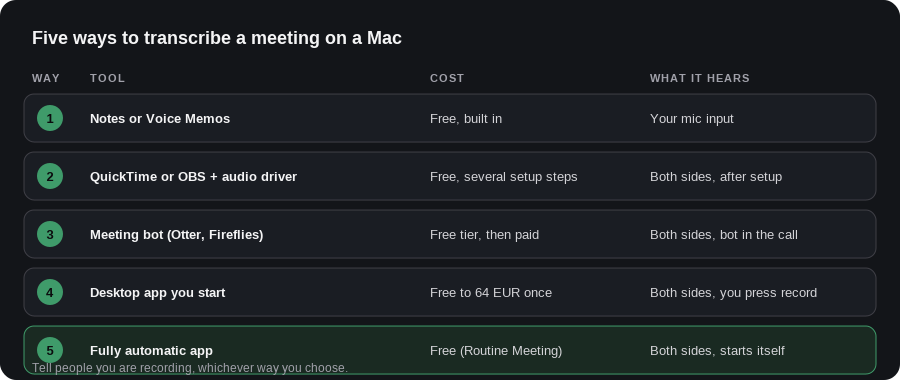
| 1. Notes or Voice Memos | 2. QuickTime or OBS + driver | 3. Meeting bot | 4. Desktop app you start | 5. Fully automatic app | |
|---|---|---|---|---|---|
| Hears the other side of a call | Not described by Apple | Yes, after setup | Yes | Yes | Yes |
| Bot in the call | No | No | Yes | No | No |
| Setup | None | Several steps | Calendar link | Install, permissions | Install, permissions |
| You start it | Yes | Yes | Automatic | Yes | No |
| Where audio goes | Apple (see note) | Your Mac, then wherever you transcribe | Vendor cloud | Depends on the app | On your Mac |
| Cost | Free | Free | Free tier, then paid | Free to 64 EUR once | Free |
1. Notes or Voice Memos (free, built in)
Notes. Per Apple Support, you can record audio inside a note, see a live transcript, and review, search and copy the transcript afterwards. Transcription is available on Macs with an M1 chip or later, with the device language set to English (several regional variants), Spanish, Portuguese, Italian, French, German, Japanese, Korean or Chinese. Apple’s page also describes generating a summary of a recording with Apple Intelligence, which depends on your region and language. Steps: open a note, click the toolbar attachment button, choose Record Audio, press record, and click the transcript button to read it.
Voice Memos. Per Apple, with macOS 15 or later on a Mac with Apple silicon, speech in your recordings can be transcribed in Voice Memos.
What Apple’s pages do not say is that either app records the other side of a call. They describe recording through the Mac’s audio input, so on a Zoom or Teams call they will hear you, and hear the others only if their voices reach your microphone. They also do not say whether transcription runs on the device, so check that before using them for private work. Good for: in-person meetings and your own voice notes.
2. QuickTime or OBS with an audio driver (free, fiddly)
Screen-recording shortcuts on a Mac record your microphone, not the audio your Mac plays, so guides recommend a virtual audio driver. BlackHole is a free, open-source loopback driver that passes audio between apps, and its site says it works on Intel and Apple silicon Macs. The usual route is to install it, send your Mac’s sound through it, pick it as the input in QuickTime or OBS, and record. Afterwards you still need to transcribe the file with another tool, and you need a setup that lets you hear the call while it records. Several guides on YouTube walk through it.
Good for: people who already use OBS and do not mind setup. The weak points are the many steps, a manual transcription pass, and a setup that is easy to get wrong on the day of an important meeting.
3. A meeting bot (Otter, Fireflies and similar)
A notetaker joins the call as a participant, records in the vendor’s cloud, and sends you a transcript and summary. It works for everyone on the call and needs no capture setup on your Mac. The costs are that everyone sees it in the participant list, and your audio goes to the vendor. Otter’s free plan, per its pricing page (checked 2026-10-06), has 300 minutes a month and 30 minutes per conversation; paid plans raise both. For a closer look at one vendor, see the Otter alternative guide.
The meeting platform’s own transcript is a close cousin. Zoom’s cloud recording transcript and its My Notes feature are covered in the guide to transcribing Zoom meetings on a Mac without a bot.
Good for: teams that want shared notes and a compliance report, and do not mind a visible bot.
4. A desktop app you start yourself
These apps record your microphone and your Mac’s system audio, so they hear both sides without joining the call. You press record, or they offer a button when they see a call.
- MacWhisper (Pro 64 EUR once): local transcription of files and, per its docs, meeting recording that is still in beta, with all participants grouped as one speaker for now.
- Whisper Notes ($14 once on Mac, per its site): on-device transcription with offline meeting recording and no monthly minute limit.
- MacParakeet (free, GPL-3.0, macOS 14.2 or later): open source, speech recognition on your Mac, summaries go to the provider you pick.
- Granola (free plan with 30-day history): captures on your Mac but uses cloud transcription providers, so audio leaves your computer.
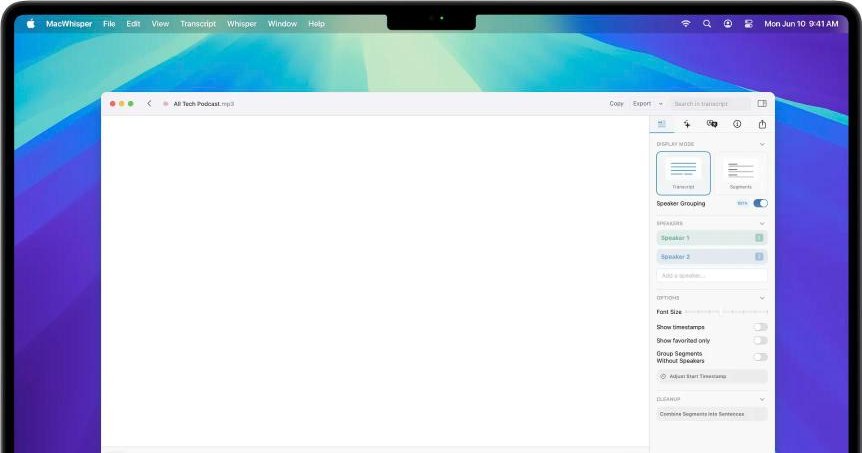
For privacy, compare these in the private transcription guide. For local summaries, see local and offline AI meeting notes. Good for: people who want control and a one-off purchase.
5. A fully automatic app (Routine Meeting)
The difference from way 4 is that you never press anything. Routine Meeting is a menu-bar app that starts when it notices the pattern of a real conversation: your microphone active plus audio playing from another app. It does not integrate with Zoom or Teams, so it also catches Slack huddles, Discord, FaceTime and calls relayed to your Mac, with no per-app setup.
- Capture: microphone plus system audio. Audio only, never video. macOS shows its purple recording indicator.
- Transcription: Parakeet v3 on your Mac (Whisper, through WhisperKit, is an option). Your side is labeled “What you said” and everyone else’s “What others said”.
- Summaries: optional, from a local model or your own Gemini key (only transcript text is sent).
- Storage: on your Mac. Old audio is deleted after the number of days you set, but only once a transcript exists.
- Cost and requirements: free, no account, Apple Silicon, macOS 14.2 or later. It is closed source and in public beta.
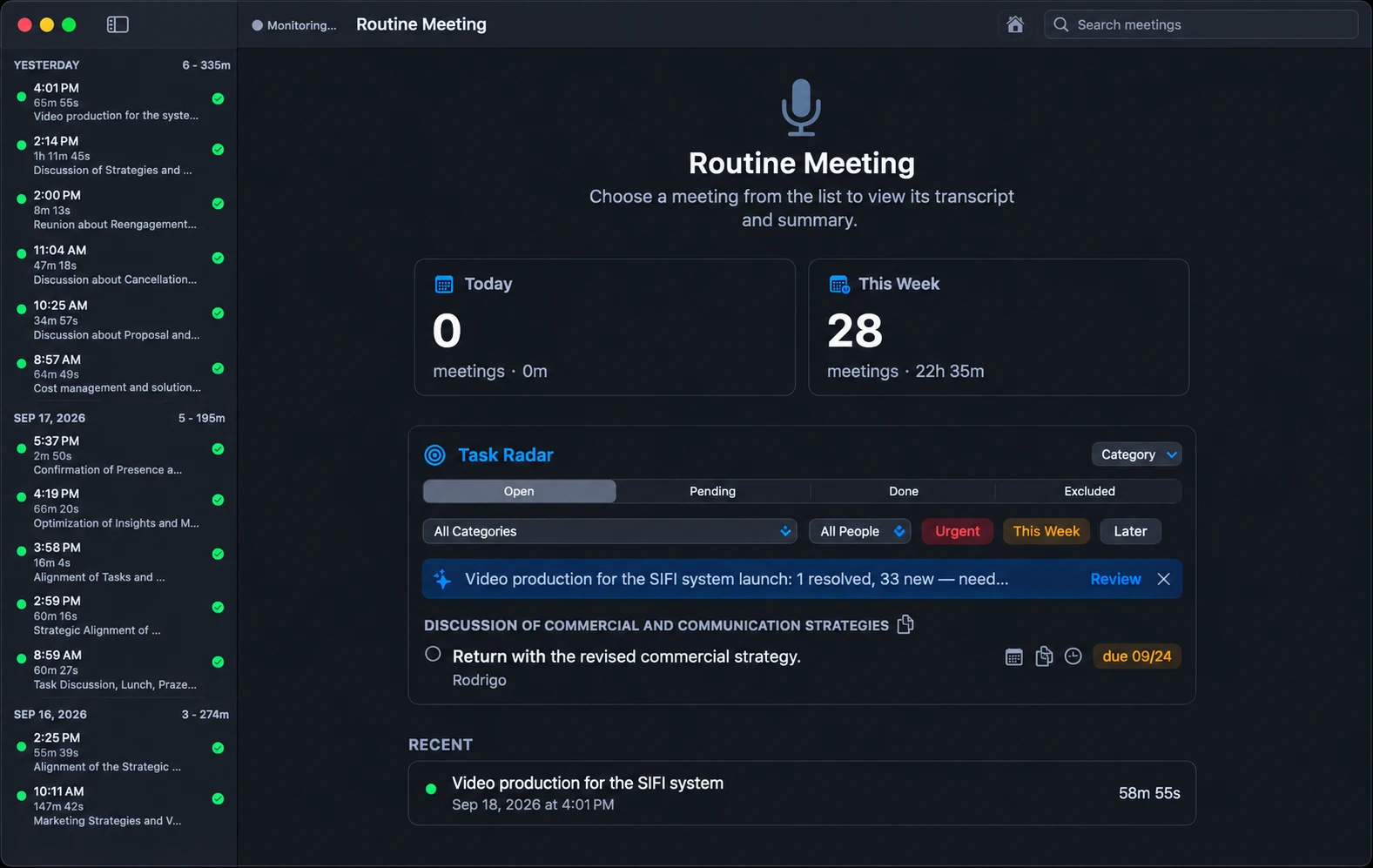
Limits: it separates you from everyone else but does not name each person in a group call, and it has no team sharing or integrations. For a detailed comparison with a hosted notepad, see the Granola alternative guide.
How to choose
- In person, now and then: Notes or Voice Memos.
- One important call and you like tinkering: QuickTime or OBS with a driver.
- A team that wants shared notes and a compliance report: a meeting bot or a hosted tool.
- You want control, a one-off price and files you drop in too: a desktop app such as MacWhisper or Whisper Notes.
- You want every call captured without remembering to start it: a fully automatic app.
If you are unsure whether “no bot” means private, read where your audio actually goes.
Before you record anything
Recording laws depend on where you and the others are, and many places require everyone’s consent. Tell people at the start: “I’m transcribing this for my notes. Is that okay?” Check company policy too, because many employers restrict unapproved AI tools. This is not legal advice.
FAQ
Does a Mac have a built-in way to transcribe a meeting? Yes, Notes and Voice Memos can transcribe recordings on supported Macs. Per Apple, Notes needs an M1 chip or later and Voice Memos needs macOS 15 or later with Apple silicon. Neither is described as capturing the other side of a call.
How do I record the other people on a call? You need to capture your Mac’s system audio as well as your microphone. A desktop app, an automatic app, or an audio driver does that. A bot does it in the cloud.
Can I transcribe a meeting for free? Yes: Notes, Voice Memos, QuickTime with a free driver, and free apps such as MacParakeet and Routine Meeting. Free bot tiers usually have minute limits.
Is it private? It depends on where speech recognition runs. Check each tool, and try it with Wi-Fi off.
Will it work offline? Apps that transcribe on your Mac work offline once their models are downloaded. Bots and cloud tools do not.
Which is the easiest? A fully automatic app, because you do nothing during the meeting. The built-in apps are easiest for in-person talks.
Sources (checked 2026-10-11)
- Apple Support: Record and transcribe audio in Notes on Mac
- Apple Support: View a Voice Memos transcription on Mac, as shown in Google results
- BlackHole: existential.audio/blackhole; guides on recording system audio as shown in Google results
- MacWhisper: macwhisper.com and docs.macwhisper.com
- Whisper Notes: whispernotes.app/blog/offline-meeting-transcription-mac
- MacParakeet: macparakeet.com/meetings
- Granola: granola.ai/security
- Otter: pricing page, checked 2026-10-06, at otter.ai
- Google and Google AI Mode results for “how to transcribe meetings on mac”, “how to record meetings on mac”, “how to automatically transcribe meetings on mac”, 2026-10-11